

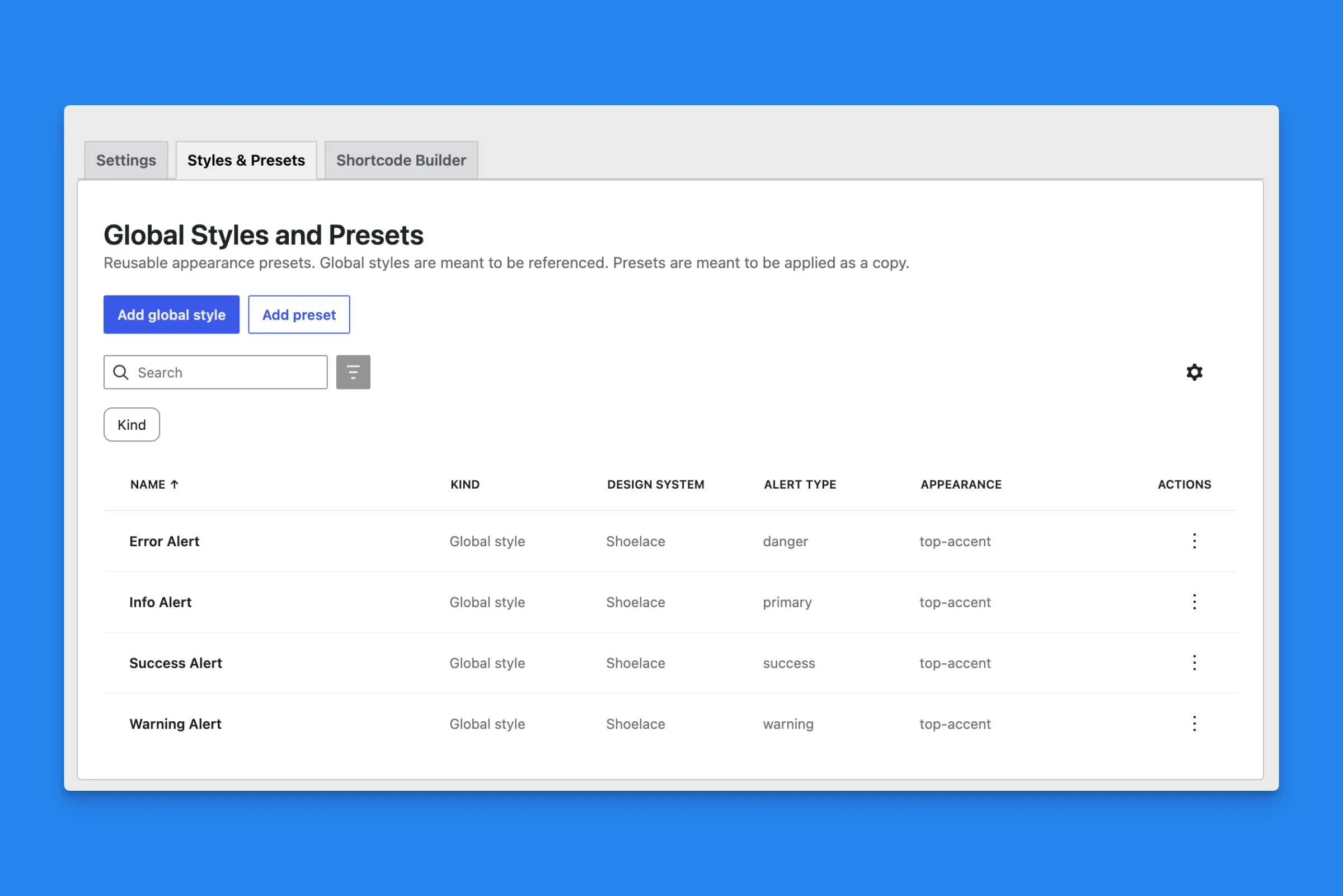
You can use Global Styles and Presets to store a common configuration that you can reuse throughout your site and in the block editor.
The settings are very similar to the built-in Shortcode builder.
Presets
Presets let you create common configurations, so when you are working in the block editor, you can select a preset and apply those styles to the block. From there, you can edit your styles without starting from scratch.
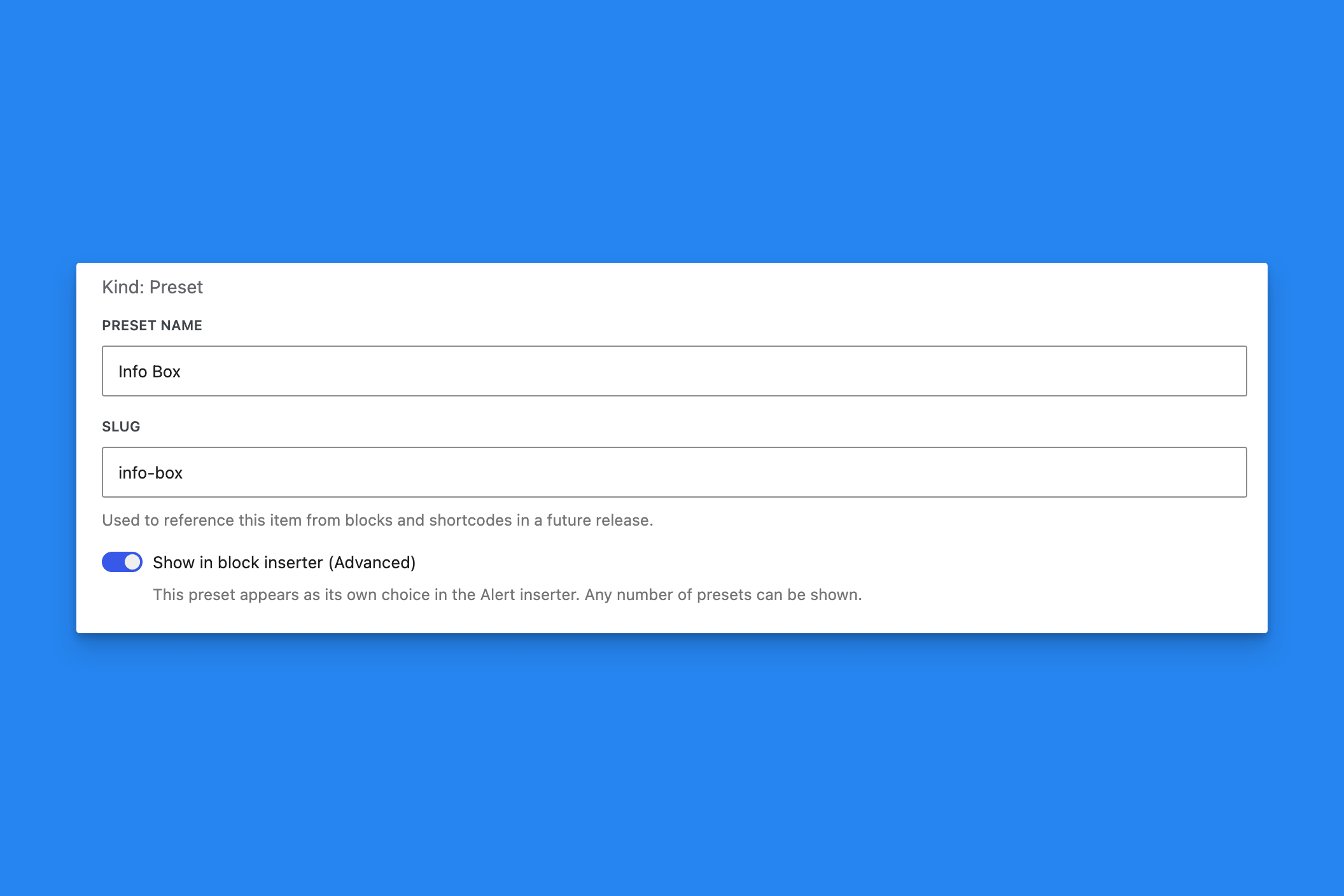
If you are happy with a preset, you can create an additional shortcut in the block editor by enabling the option: “Show in Block Inserter.”
After you assign or insert a preset, you can adjust the style afterward. Presets are designed to be starting points for your alert.
Your preset will then be available via the ‘/’ slash command, as well as showing up in the block sidebar as a selectable option.
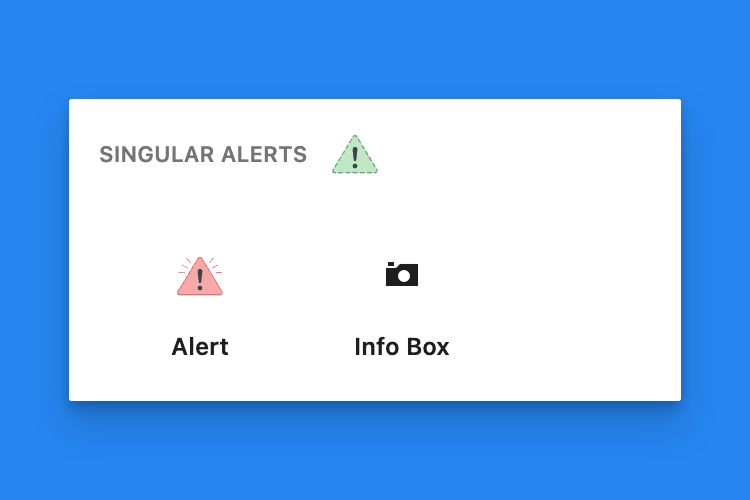
Presets are meant to be starting points for your alert. If you edit a preset, the styles don’t automatically filter down to the block. If you’d like to make all blocks and shortcodes look the same, you will want to use a Global Style, not a preset.
Presets can be set in the block’s sidebar options and are meant as starting points.
Global Styles
Global Styles are meant to be copied and applied site-wide for certain alerts. For example, you want to have a set style for all “Info” and “Error” alerts, but still allow the content to be adjusted.
A Global Style is meant to be edited in one place and have that design filter down to all alerts using it. A preset is meant to be used once, as a starting point when creating an alert.
You can set Global Styles in the block’s sidebar options, but you must detach them to change the block’s appearance.
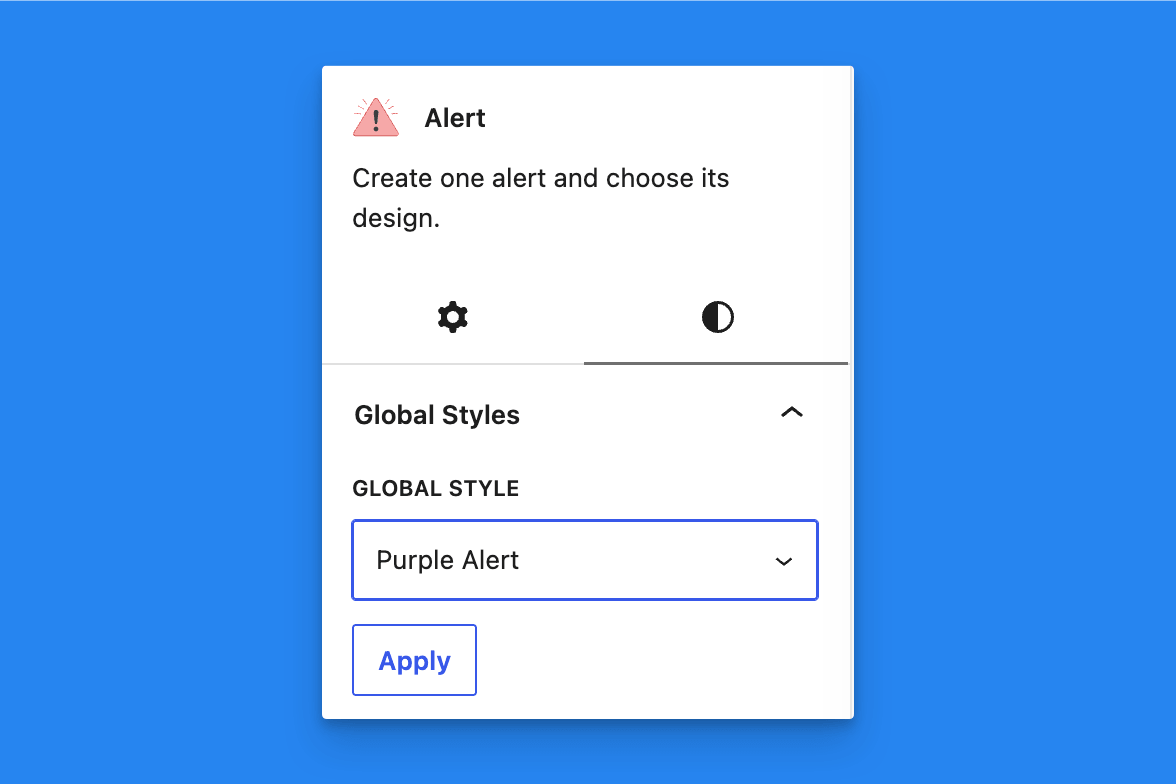
To use a Global Style in a shortcode, add a global_style attribute and reference the global style’s slug.
[alertsdlx global_style="info-notice" alert_title="Heading"]Body text[/alertsdlx] Display Conditions
 Headline and Title Settings
 Flexible Inner Blocks
 Editorial-Only Blocks
 Dismissible Alerts