

You can store an icon in the GenerateBlocks Pro Asset Library without leaving the editor. The new icon shows up in Pro’s icon picker the next time that picker is opened.
GenerateBlocks Pro must be active, and you must be an Administrator. Other roles do not see these tools.
SVG markup is cleaned before it is stored, using the same checks as saving from the Asset Library screen.
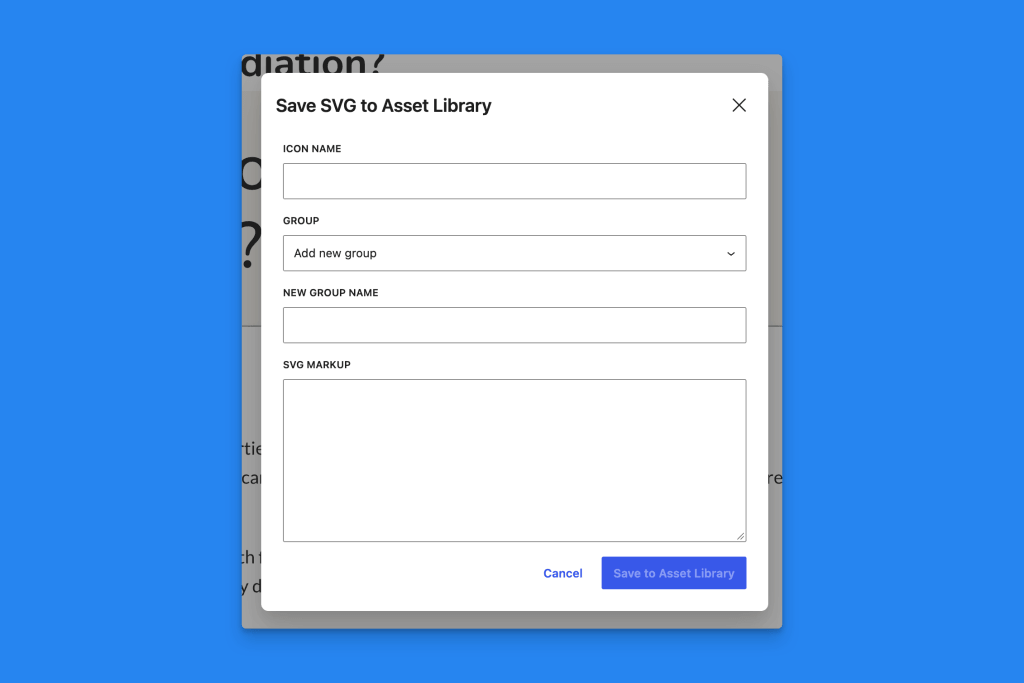
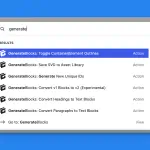
From the command palette
- In the block editor, press Ctrl+K or Cmd+K.
- Run GenerateBlocks: Save SVG to Asset Library.
- Enter an Icon name.
- Choose a Group, or choose Add new group and enter a New group name.
- Paste the icon into SVG markup. A preview appears when the markup can be shown.
- Save the icon.
From the block options menu
Select a single Shape, Text, Headline, or Button that already contains SVG markup. Open the block options menu and choose Save SVG to Asset Library.
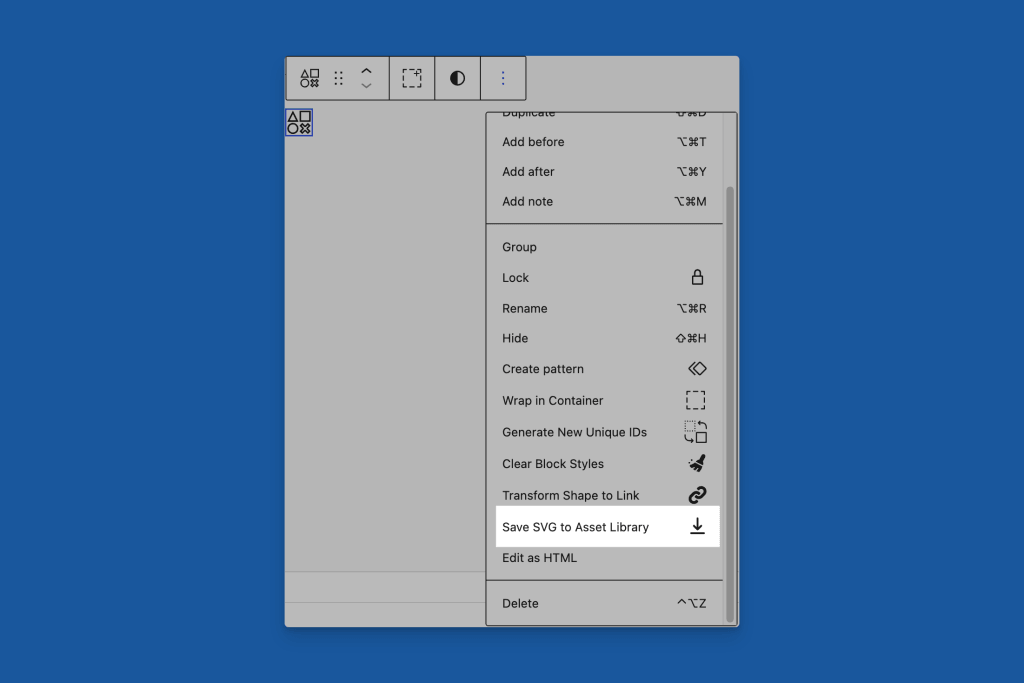
The markup comes from the block, so the dialog doesn’t ask you to paste it again. Set the Icon name and Group, then save.
- On a Shape, the SVG is read from the shape markup.
- On a Text, Headline, or Button, the SVG is read from the icon.
Duplicate icons
GenerateBlocks highlights a library tile when its SVG matches the block. Saving the same markup twice into one group would highlight more than one tile, so a second save of that markup into the same group is skipped. The dialog warns you when the icon is already in that group. Use another group if you need a separate copy.
 Pattern Inserter
 Block Menu Tools
 Command Palette