

These tools appear in the block options menu (the three-dot menu on a selected block). They are available whenever the plugin is active. You do not turn them on from Shortcuts, except Convert v1 Blocks to v2.
Open a post or page, select a block, and open the block options menu.
Wrap in Container
Shown when one or more blocks are selected.
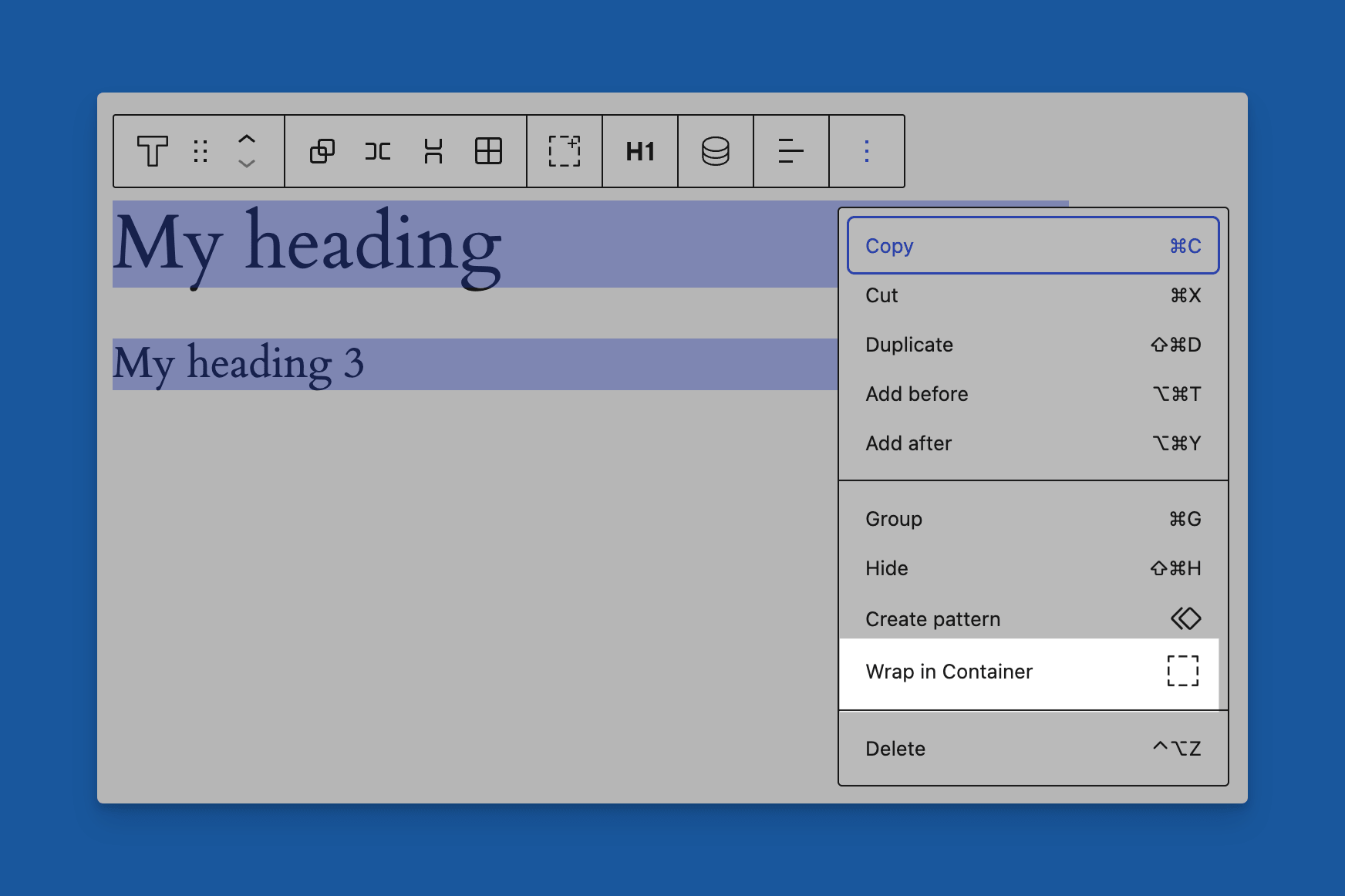
Wraps the selection in a GenerateBlocks Element. If several blocks are selected, they become the inner blocks of one new Element.
Generate New Unique IDs
Shown when the selected block is a GenerateBlocks 1.x or 2.x block.
Gives that block, and the GenerateBlocks blocks inside it, new unique IDs. Use this when a duplicated block should not share an ID with the original.
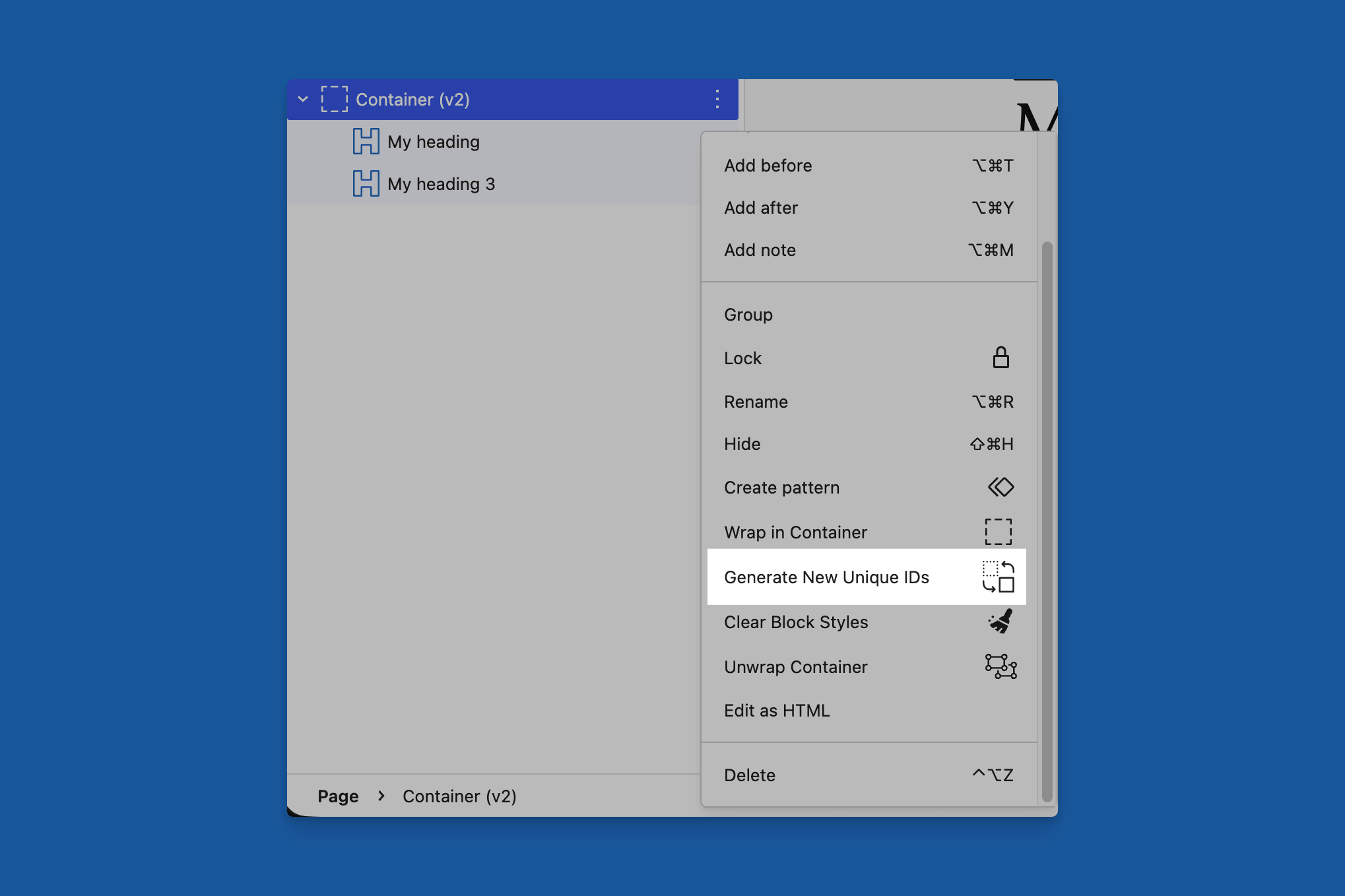
To renumber every GenerateBlocks block in the post, use the command palette instead. See Command palette.
Clear Block Styles
Shown when the selected block is a GenerateBlocks 2.x block.
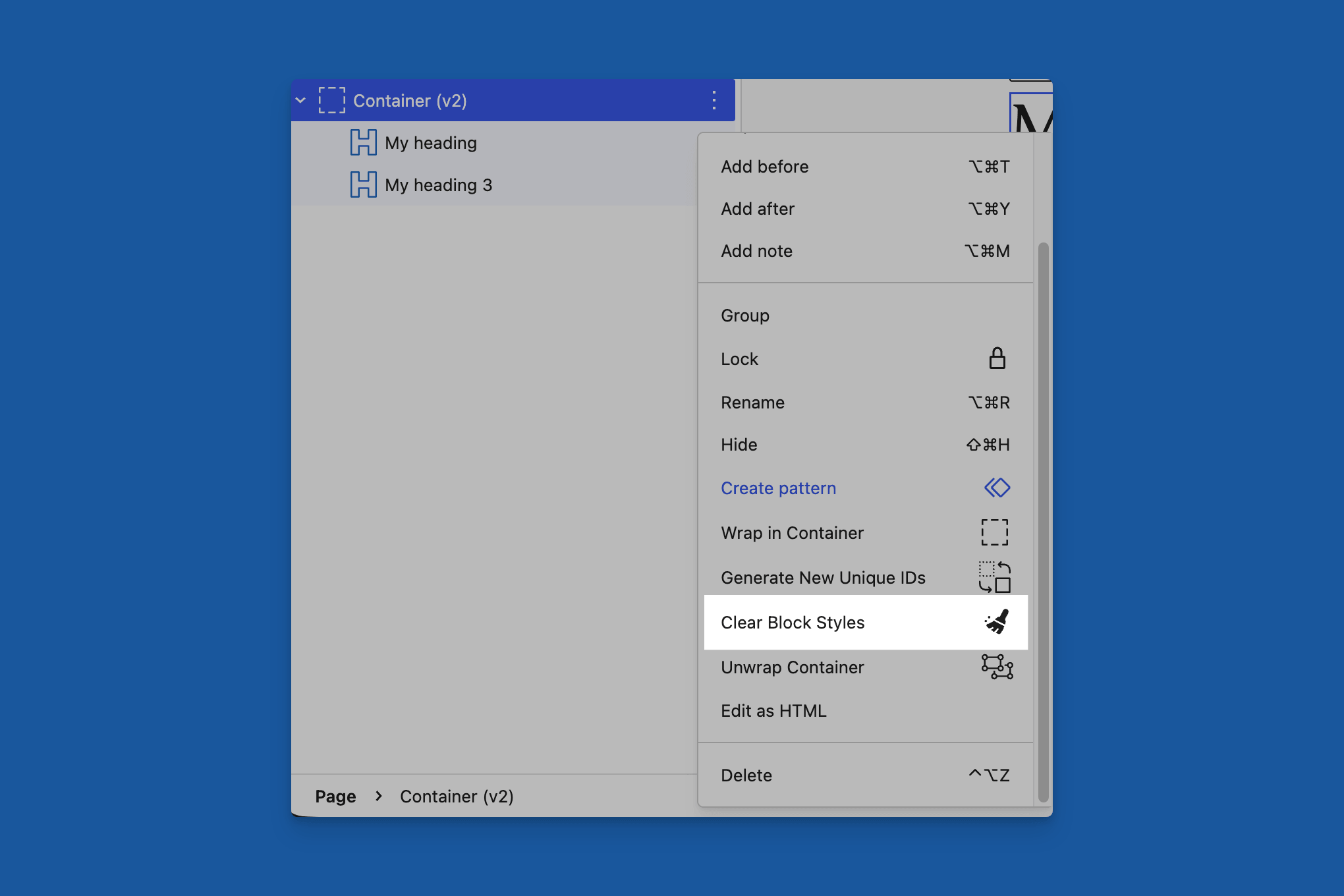
Removes the styles stored on that block. Inner blocks keep their own styles.
Unwrap Container and Unwrap Grid
Shown when the selected block is a GenerateBlocks Container or Element that has blocks inside it.
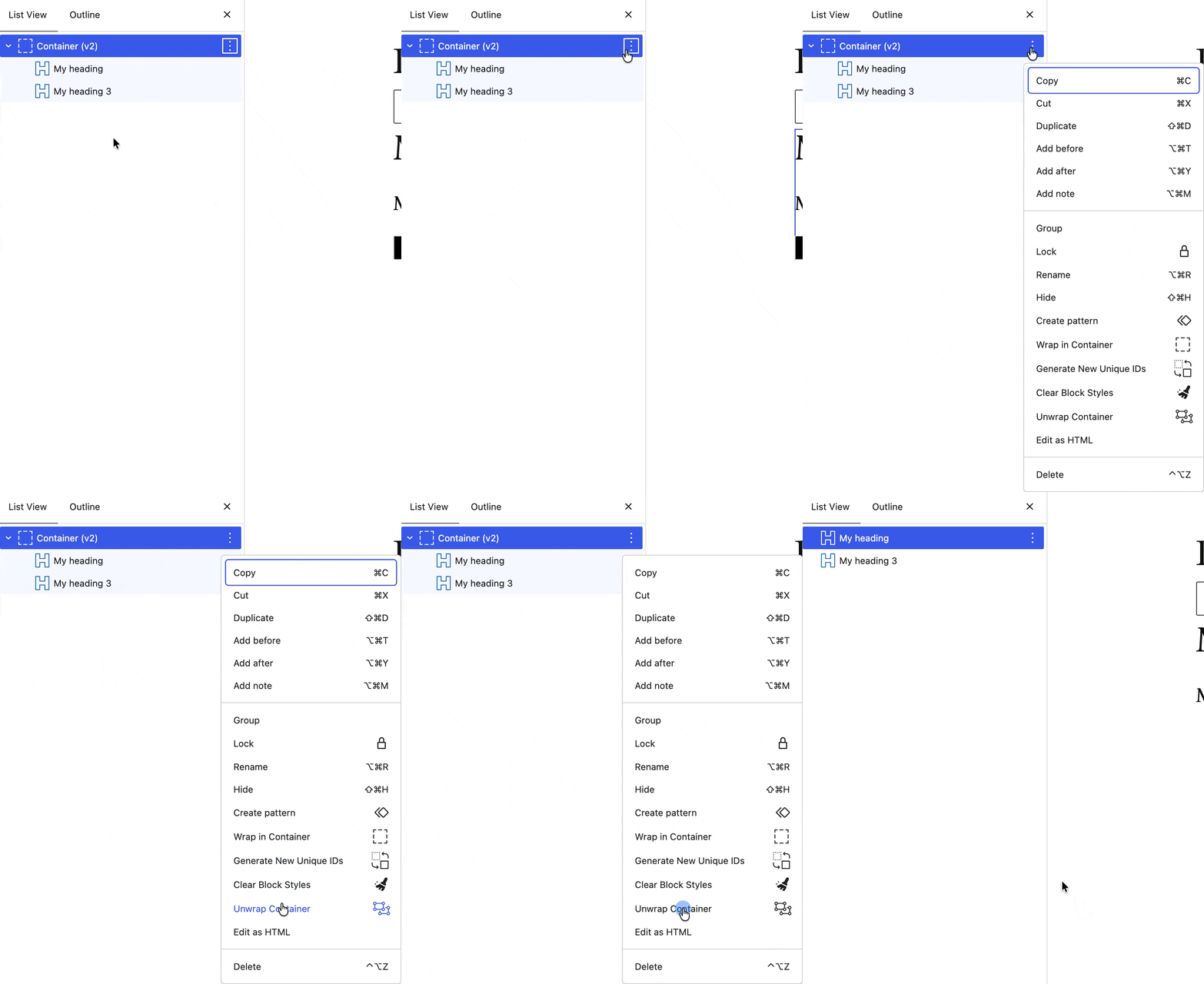
- Unwrap Container lifts the inner blocks out and removes the wrapper.
- The label is Unwrap Grid when that Container or Element is displayed as a grid.
The first inner block is selected after the unwrap.
Transform Shape to Link
Shown when a GenerateBlocks Shape block is selected.
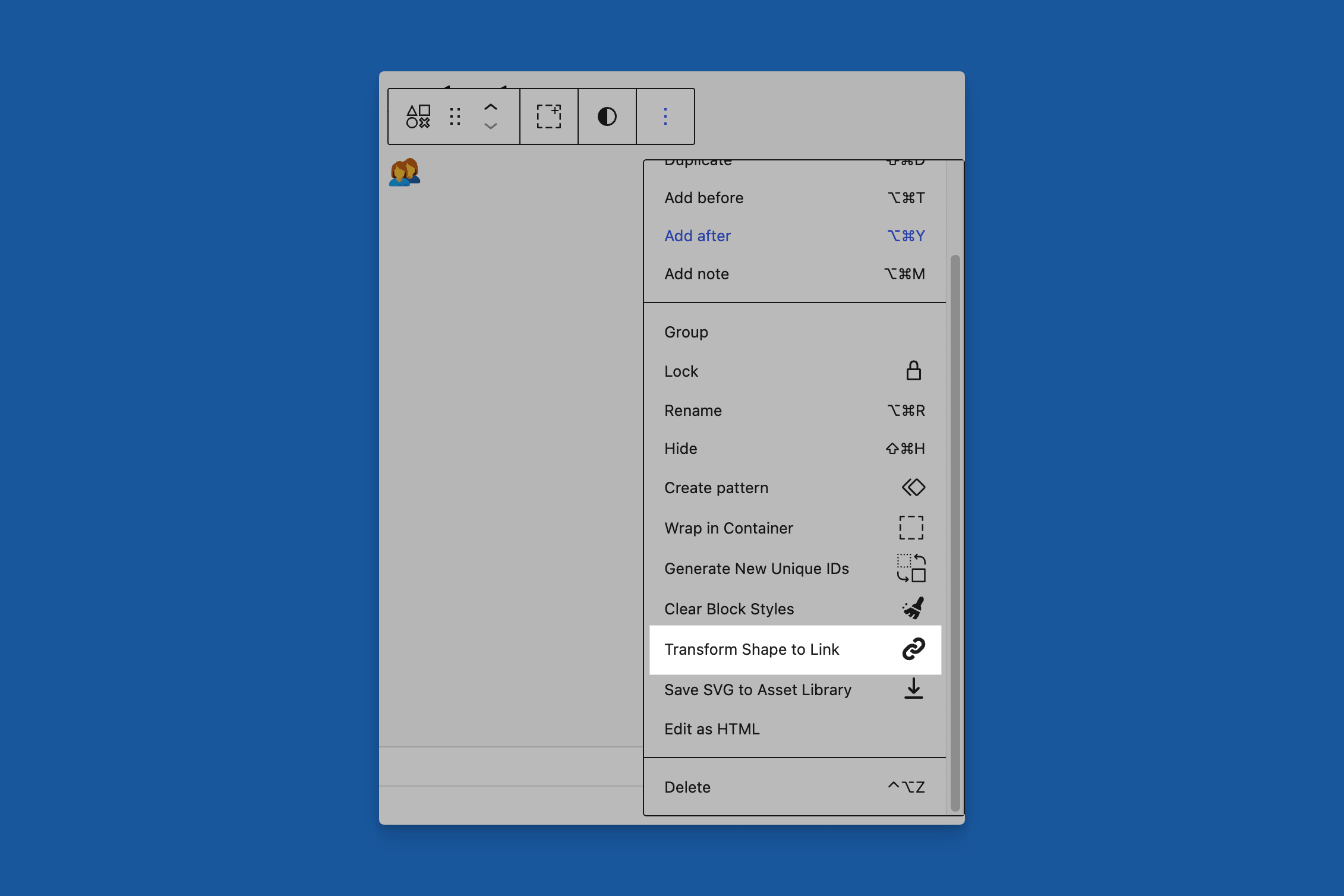
Replaces the Shape with a GenerateBlocks Text block. The text block is a link, and the shape markup is used as an icon before the text, with only the icon showing.
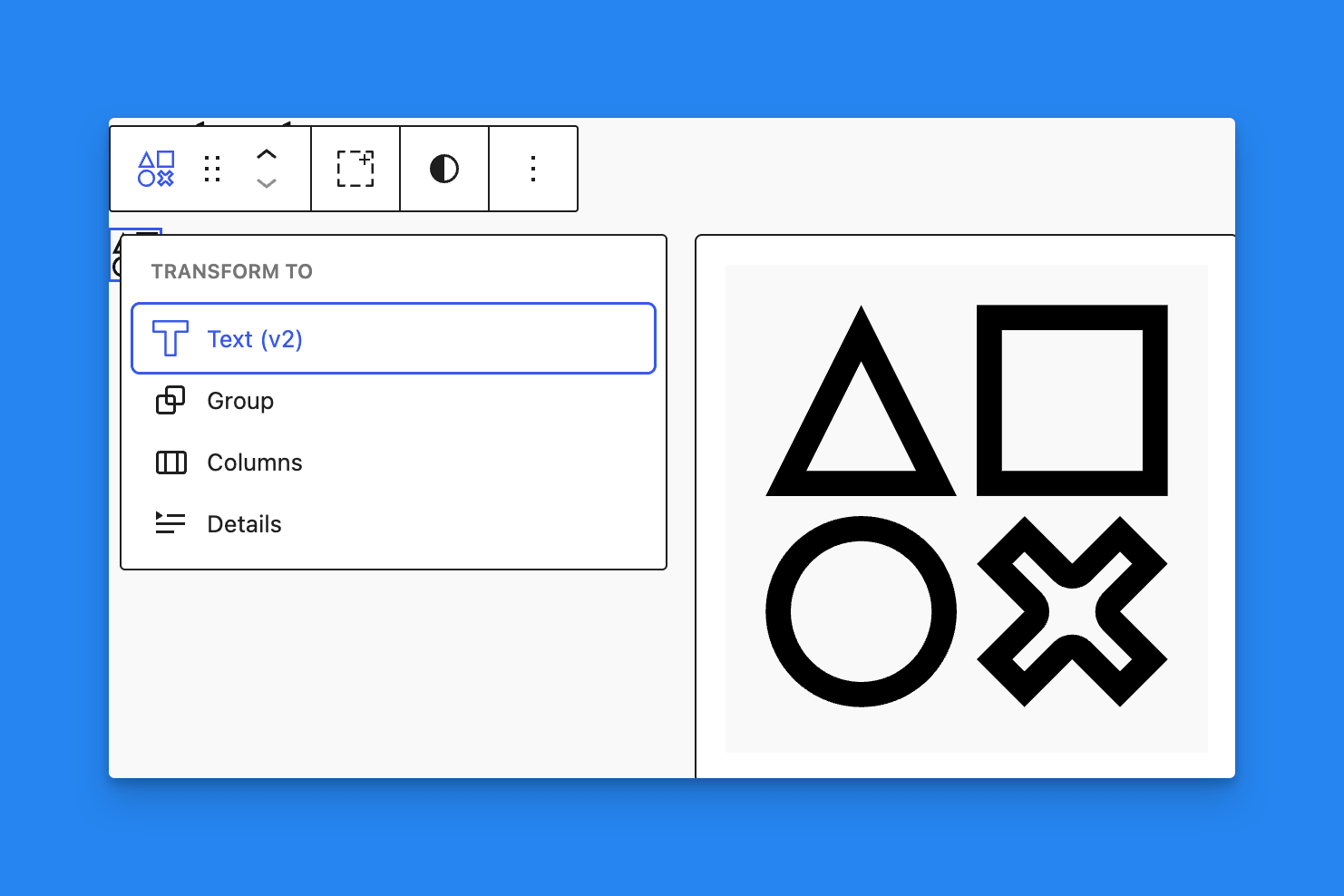
You can also transform a Shape block to a text block via a block transform.
Convert v1 Blocks to v2
Shown when a single block is selected, that block or something inside it is still a GenerateBlocks 1.x block, and Enable v1 Transformations Block Command is on. See Block Settings.
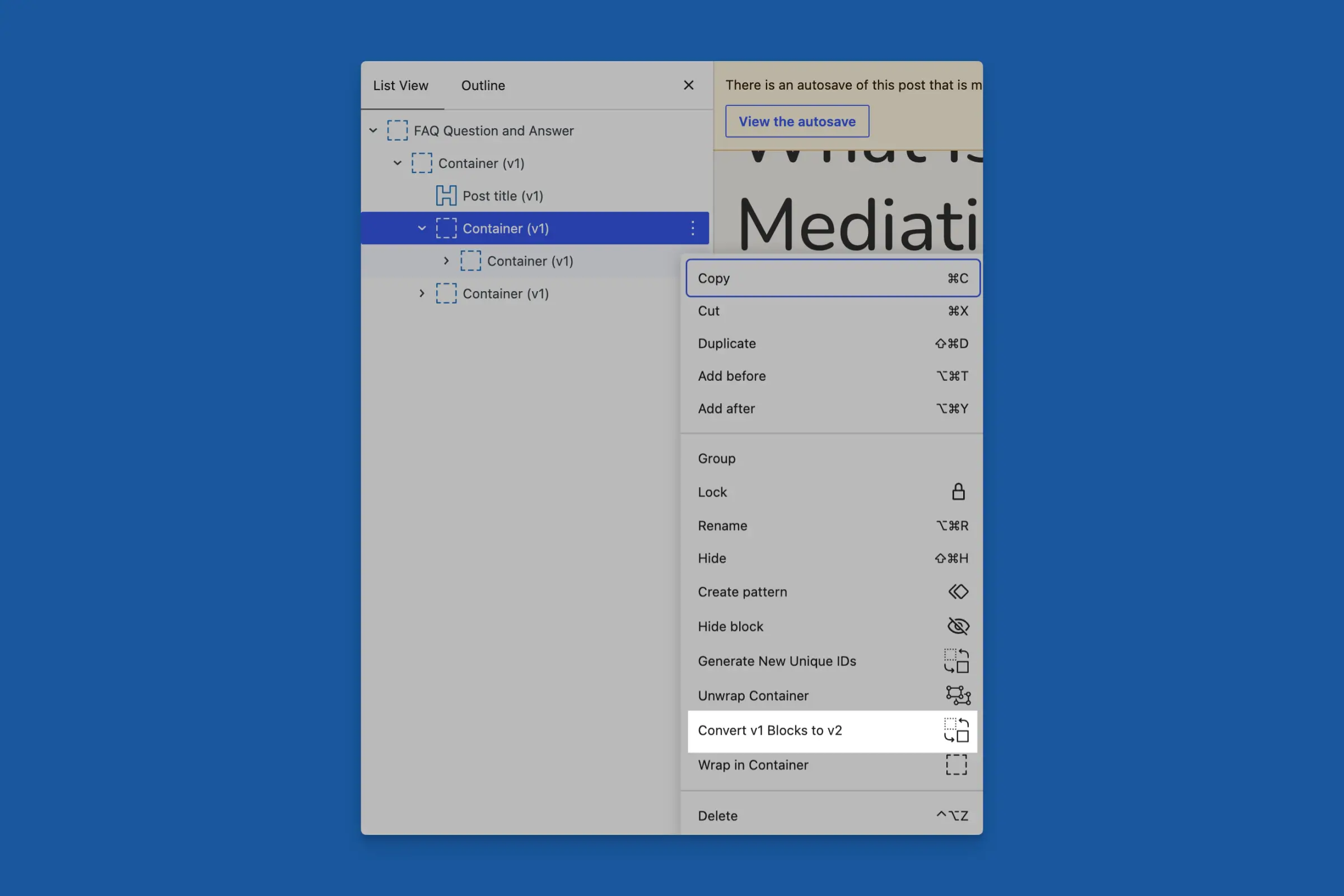
Converts that selection from 1.x to 2.x. It does not convert other 1.x blocks elsewhere in the post. For the whole post, use the command palette. Back up first. The whole-post command cannot be undone.
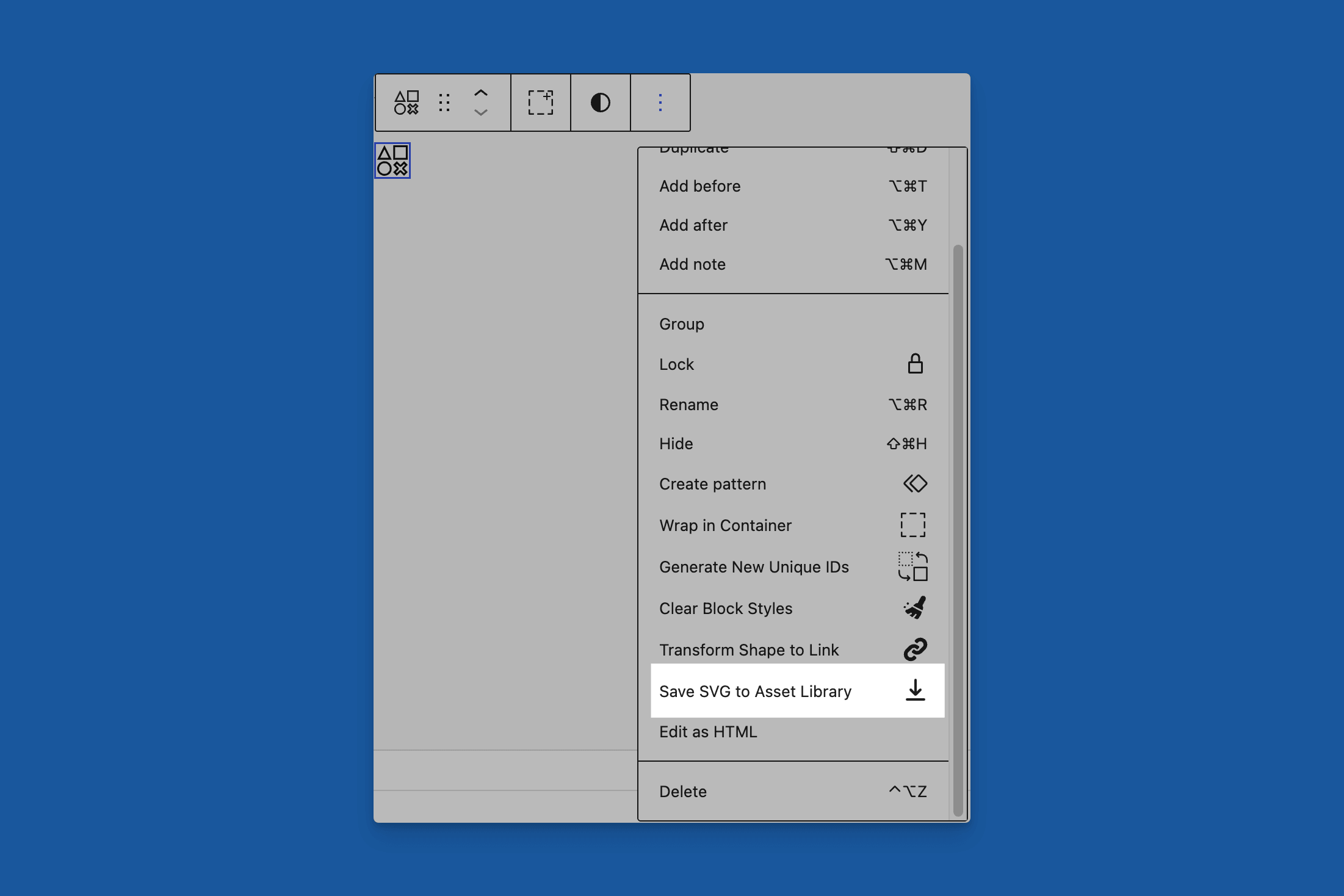
Save SVG to Asset Library
Shown for Administrators when GenerateBlocks Pro is active, and the selected Shape, Text, Headline, or Button already contains SVG markup. See Save an SVG to the Asset Library.
Transform a Group
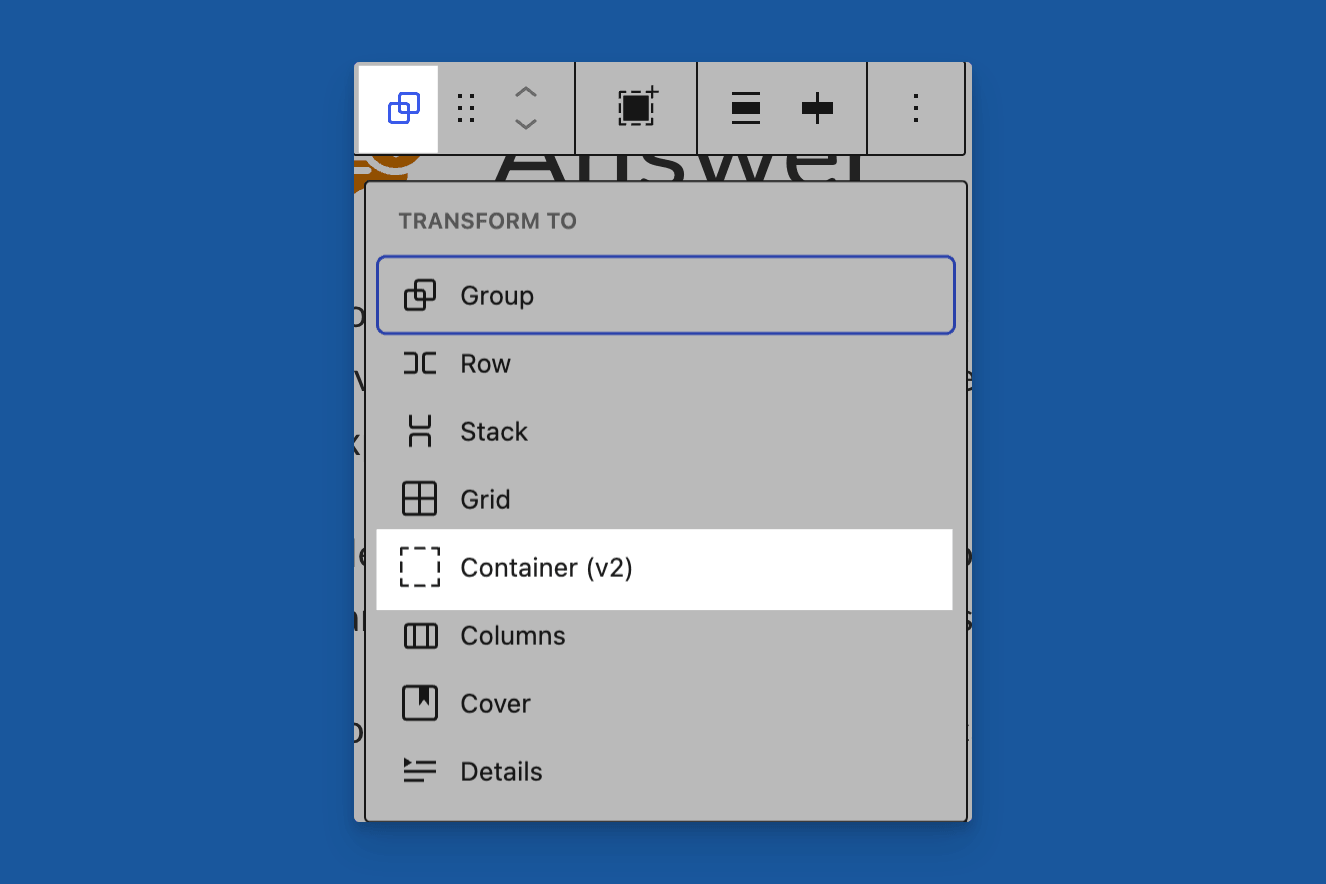
A core Group block can be transformed into a GenerateBlocks Element. Select the Group, open Transform to, and choose the Container block. Inner blocks are kept.
Transform Columns
A core Columns block can be transformed into a GenerateBlocks grid. Select the Columns block, open Transform to, and choose the Element block. The result is a grid whose column count matches the Columns block.
Equal columns use an even grid. When every column has a width, those widths become the grid tracks, so a one-third/two-thirds layout stays one-third/two-thirds. Each column becomes its own Element, and the blocks inside it are kept. Columns that stack on smaller screens still stack after the transform.
 Pattern Inserter
 Command Palette
 Save an SVG to the Asset Library