

Open GenerateBlocks → Shortcuts and use the Block Settings panel. Select Save Options when you are done. Open the editor again so the saved options apply.
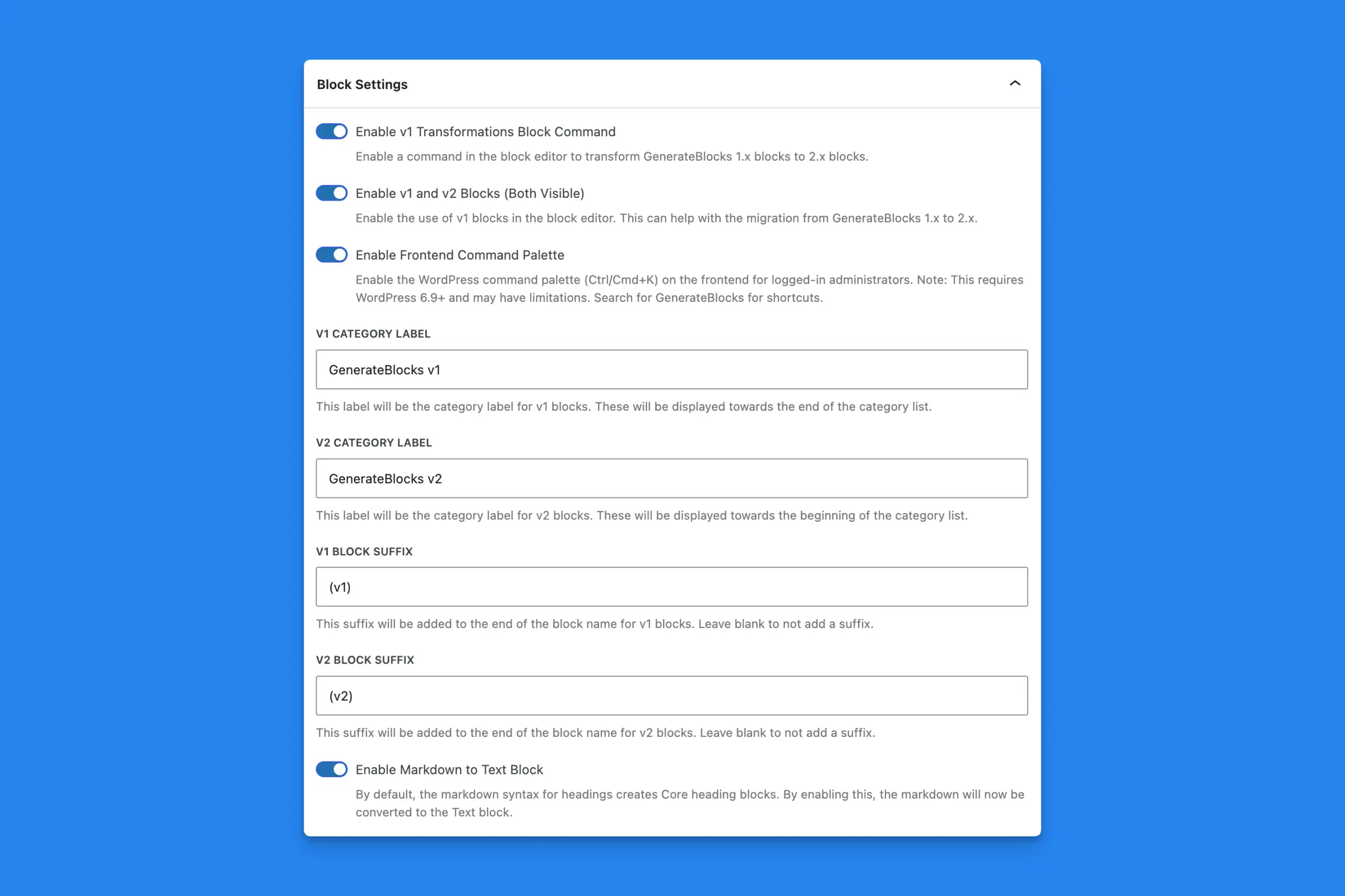
Enable v1 Transformations Block Command
Turn this on to convert GenerateBlocks 1.x blocks to 2.x blocks.
When it is on, you can:
- Run GenerateBlocks: Convert v1 Blocks to v2 (Experimental) from the command palette. That converts every 1.x block in the current post.
- Use Convert v1 Blocks to v2 in the block options menu when a single block contains 1.x blocks. That converts the selected block and the blocks inside it.
The command palette conversion asks you to confirm before it runs. Back up the content first. That conversion cannot be undone.
Leave this off if you are not migrating 1.x blocks. It is off by default.
Enable v1 and v2 Blocks (Both Visible)
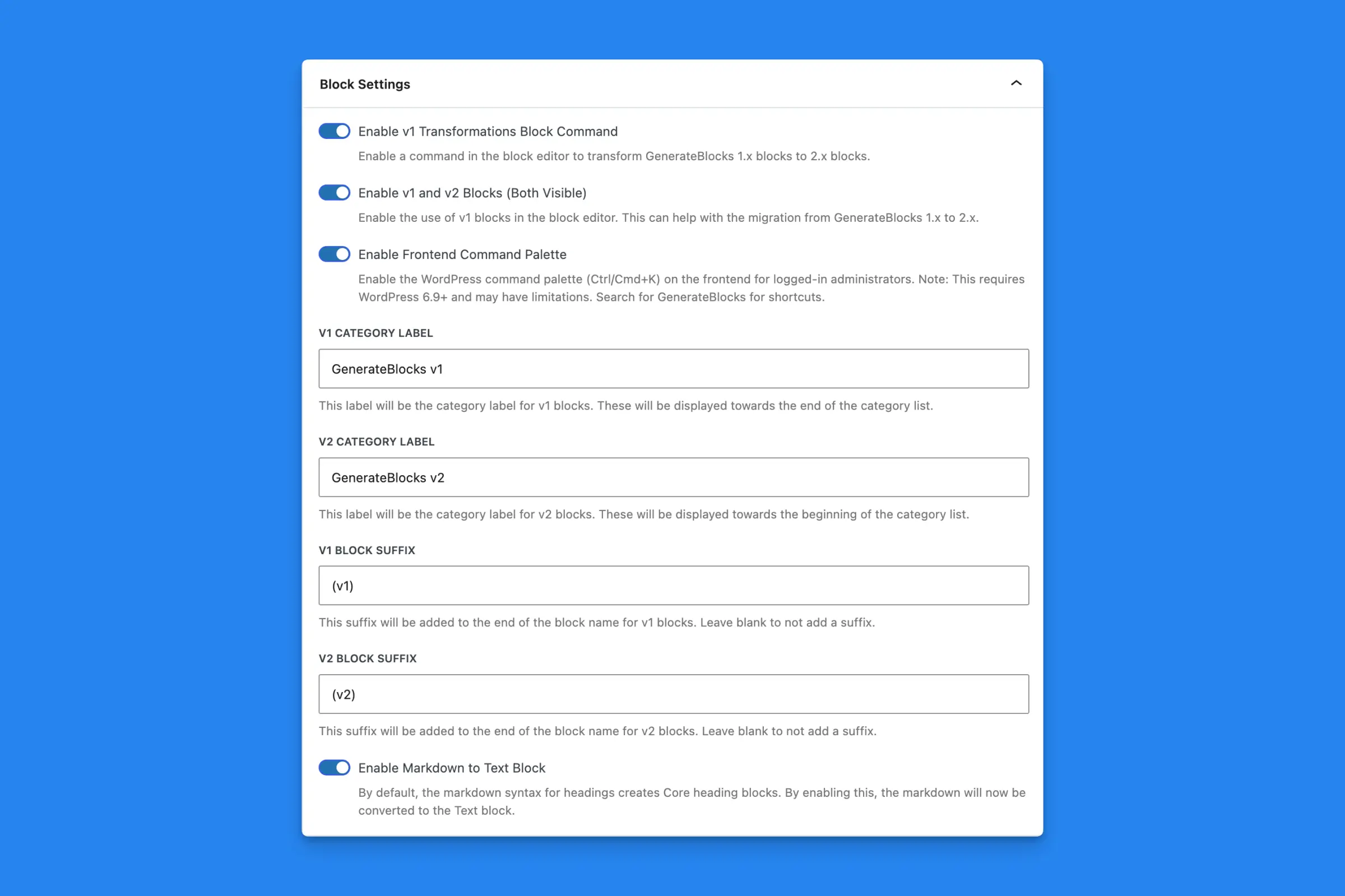
Turn this on to keep GenerateBlocks 1.x and 2.x blocks in the inserter at the same time. Use it while you move a site from 1.x to 2.x. It is off by default.
When both versions are visible, four extra fields appear.
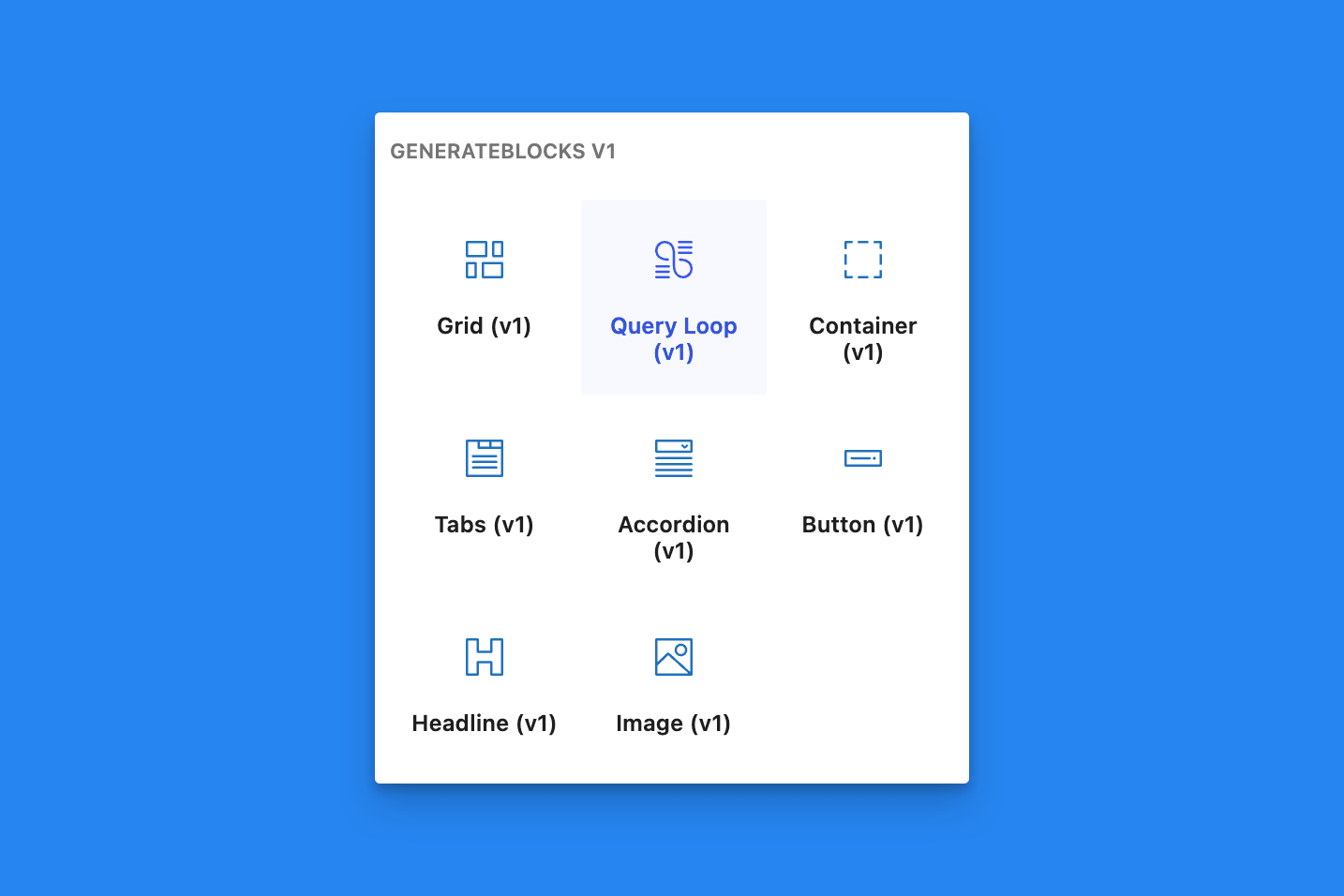
v1 Category Label
The inserter category title for 1.x blocks. The default is GenerateBlocks v1. These categories are listed toward the end of the category list.
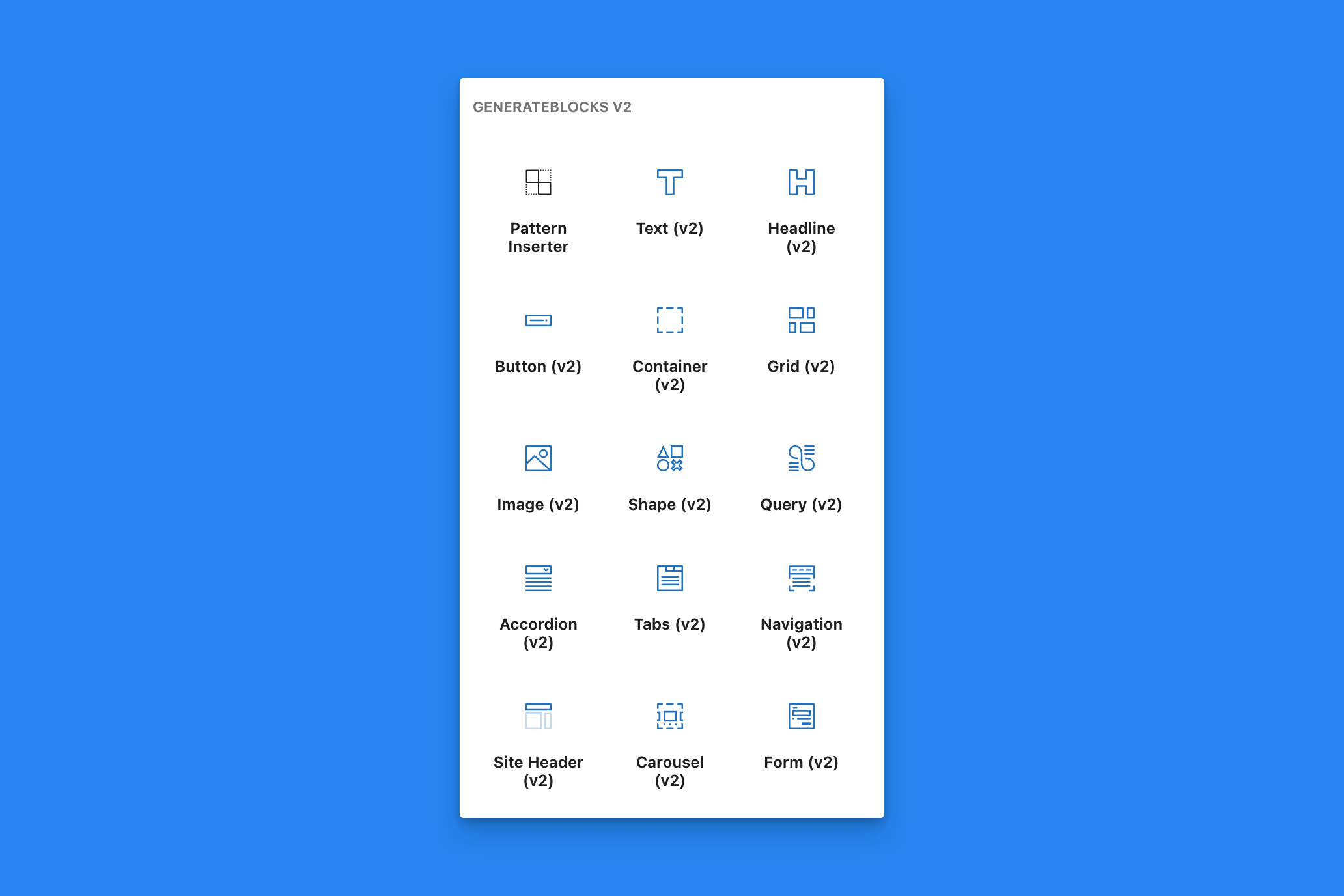
v2 Category Label
The inserter category title for 2.x blocks. The default is GenerateBlocks v2. These categories appear near the beginning of the category list.
v1 Block Suffix
Text added to the end of each 1.x block name. The default is (v1). Leave the field blank to add no suffix.
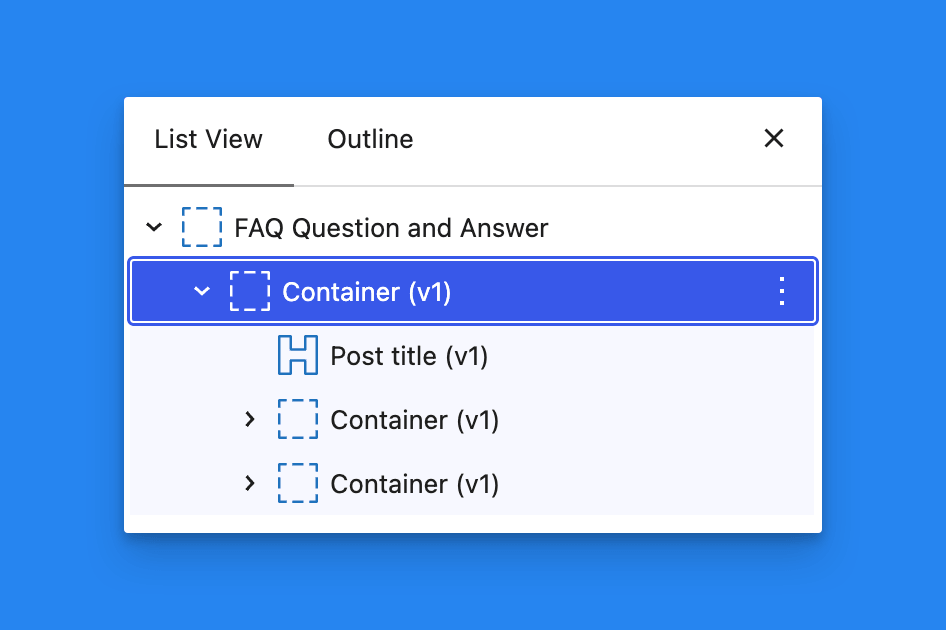
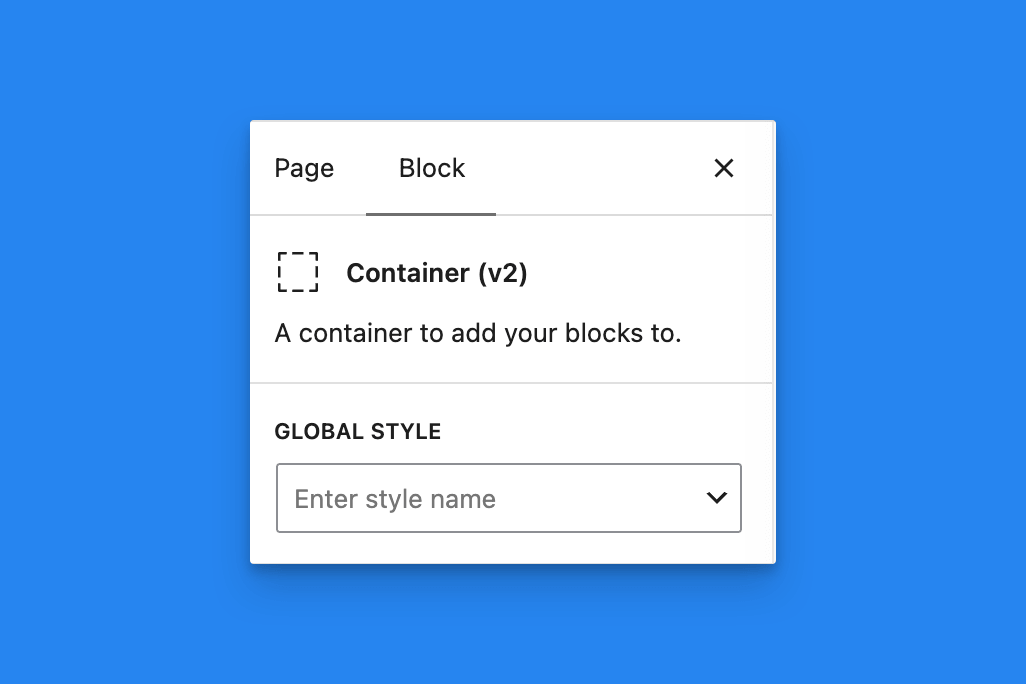
v2 Block Suffix
Text added to the end of each 2.x block name. The default is (v2). Leave the field blank to add no suffix.
Enable Frontend Command Palette
Turn this on to load the WordPress command palette on the front end for logged-in Administrators. Open it with Ctrl+K (Windows and Linux) or Cmd+K (Mac), then search for GenerateBlocks.
This option needs WordPress 6.9 or later and can be limited compared with the palette inside the editor. It is off by default.
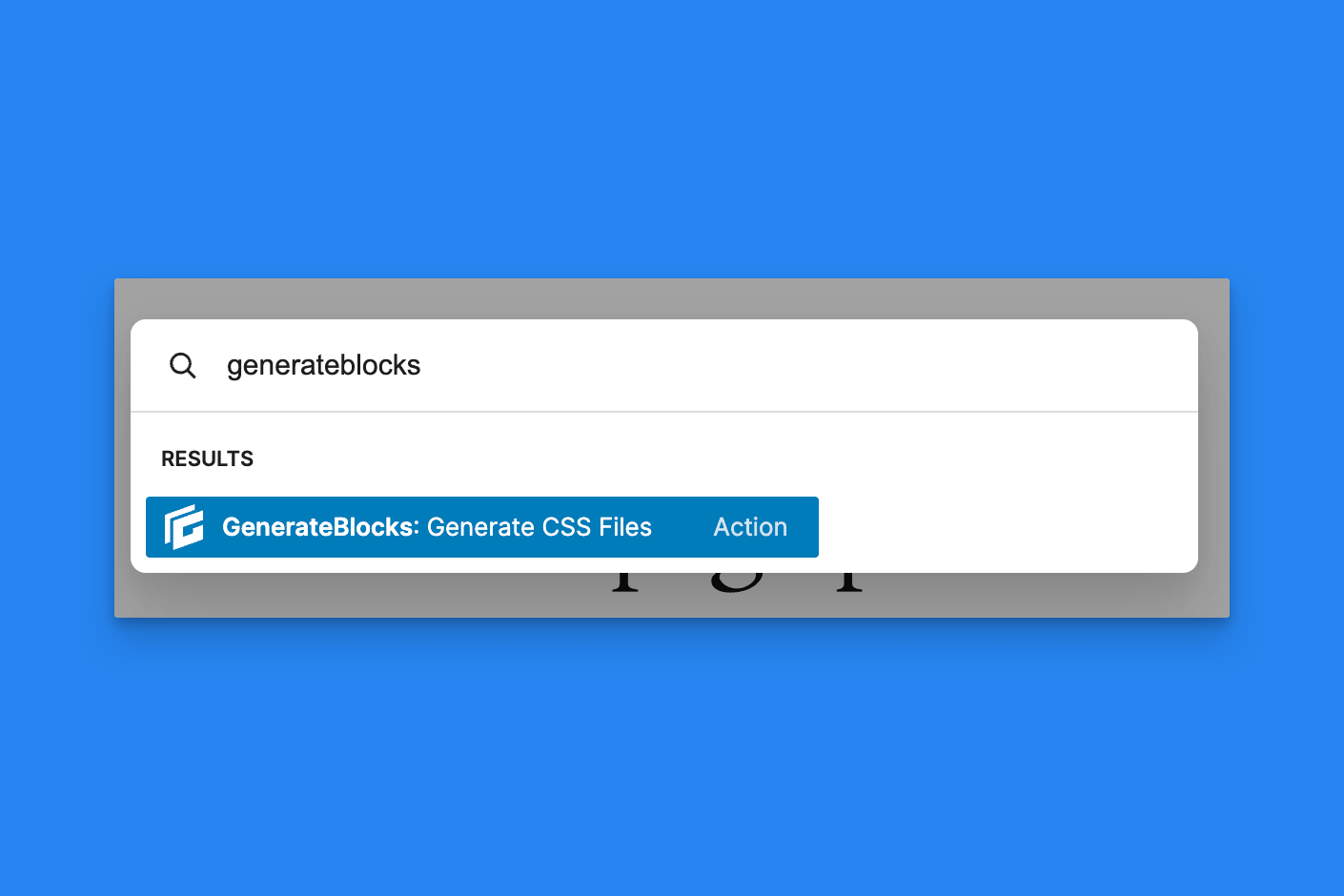
See the Command palette for the commands you can run.
Related
Markdown headings are also configured in this panel. See Markdown to Text.
 Process Pasted Patterns
 Post Type Styles
 Markdown to Text
 Auto-Regenerate Styles on Save
 Adobe Fonts
 Admin Menu Bar