

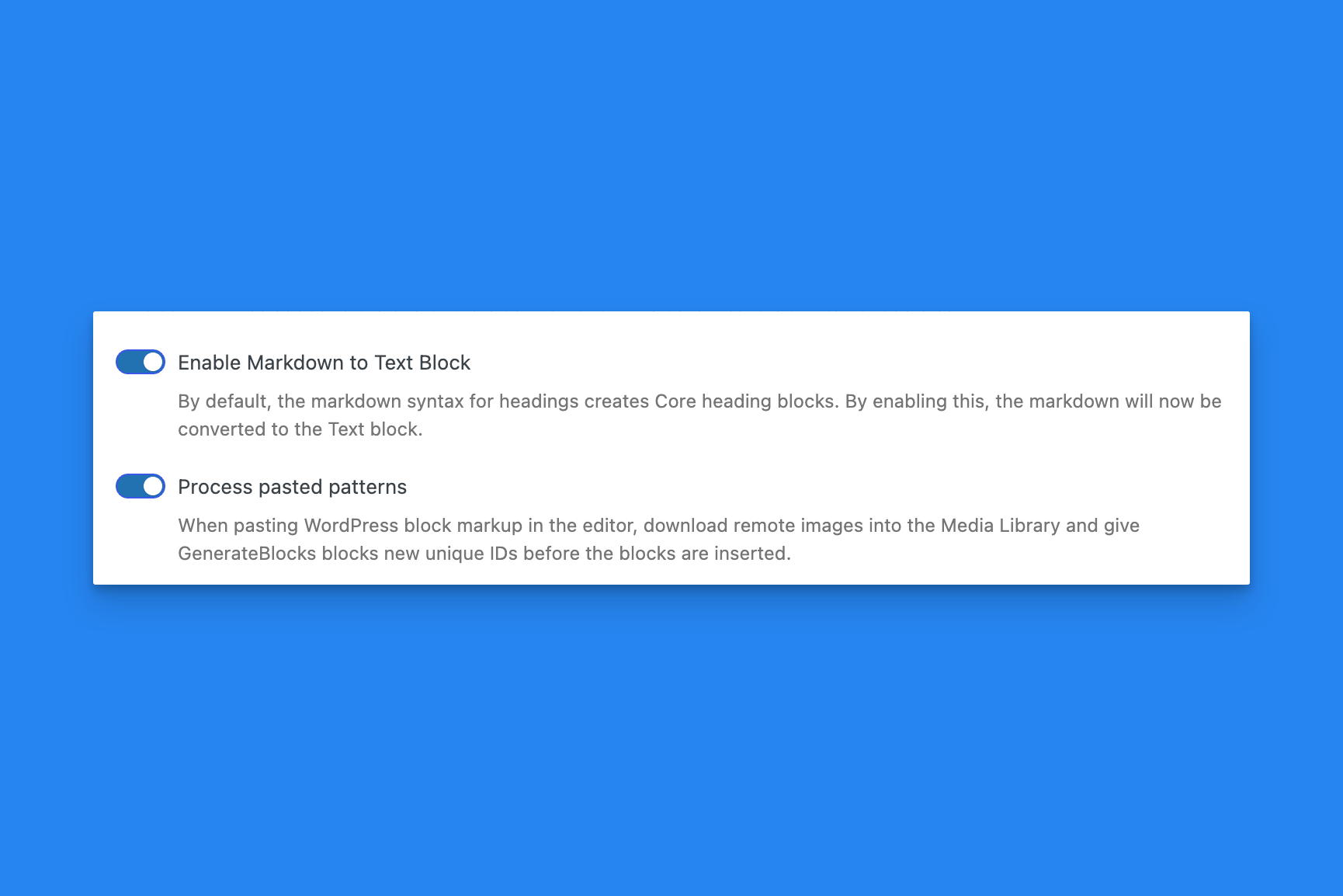
When Process Pasted Patterns is on, pasting WordPress block markup in the editor downloads remote images and gives GenerateBlocks blocks new unique IDs before the blocks are inserted.
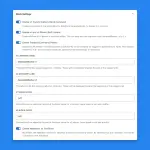
The option is in Block Settings on GenerateBlocks → Shortcuts. It is off by default. Turn it on, select Save Options, then reopen the editor.
What is processed
The paste is handled when the clipboard contains WordPress block markup (the <!-- wp: comments). That includes core blocks and GenerateBlocks blocks.
Plain text, a sentence pasted into a paragraph, and an image file copied from your computer stay as a normal paste.
Remote images
Image addresses that point to another site are downloaded into the Media Library. A dialog lists each image and stays open until you close it, including when the download finishes quickly. The pasted blocks use the new local addresses.
Images that already use this site’s address remain unchanged.
If an image cannot be downloaded, the paste still continues, and that image keeps its original address.
Downloading images requires permission to upload files and to publish posts. Without that permission, the blocks are still pasted, and GenerateBlocks unique IDs are still updated, but the images stay on the original site.
Unique IDs
Each pasted GenerateBlocks block receives a new unique ID, including the selectors stored in the block’s CSS, before it’s inserted. Blocks already on the page are left as they are. A paste with no remote images does not open the image dialog.
One undo removes the paste. Synced patterns are left unchanged.
Pattern Inserter
The Pattern Inserter block is separate. Use it when you want to paste markup into its text field and choose whether to import remote images.
 Post Type Styles
 Block Settings
 Markdown to Text
 Auto-Regenerate Styles on Save
 Adobe Fonts
 Admin Menu Bar