

Open the WordPress command palette with Ctrl+K (Windows and Linux) or Cmd+K (Mac). Search for GenerateBlocks to list the shortcuts from this plugin.
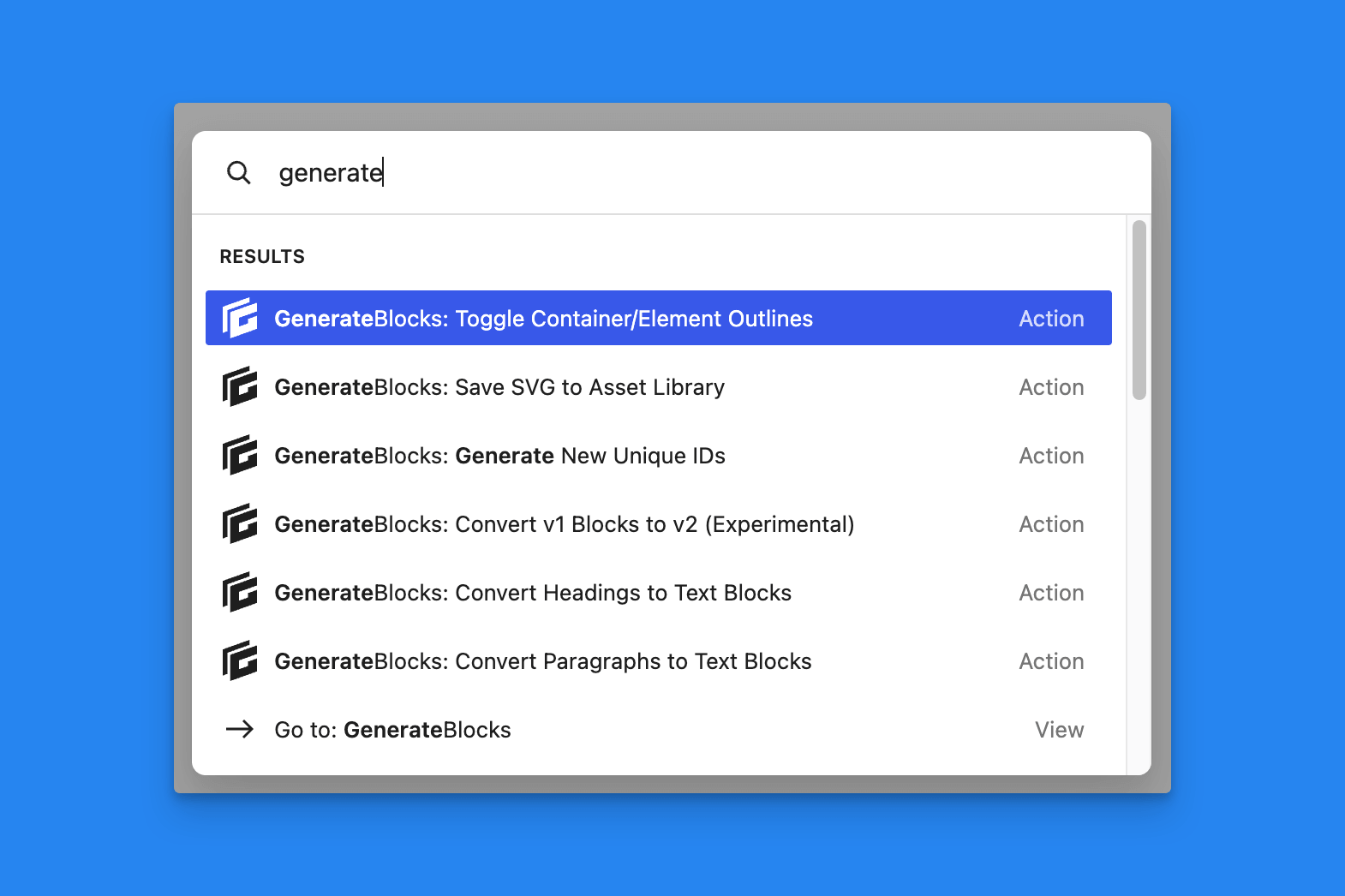
Most commands run in the block editor. Generate CSS Files also runs from wp-admin, and from the front end when the frontend command palette is enabled.
Toggle Container/Element Outlines
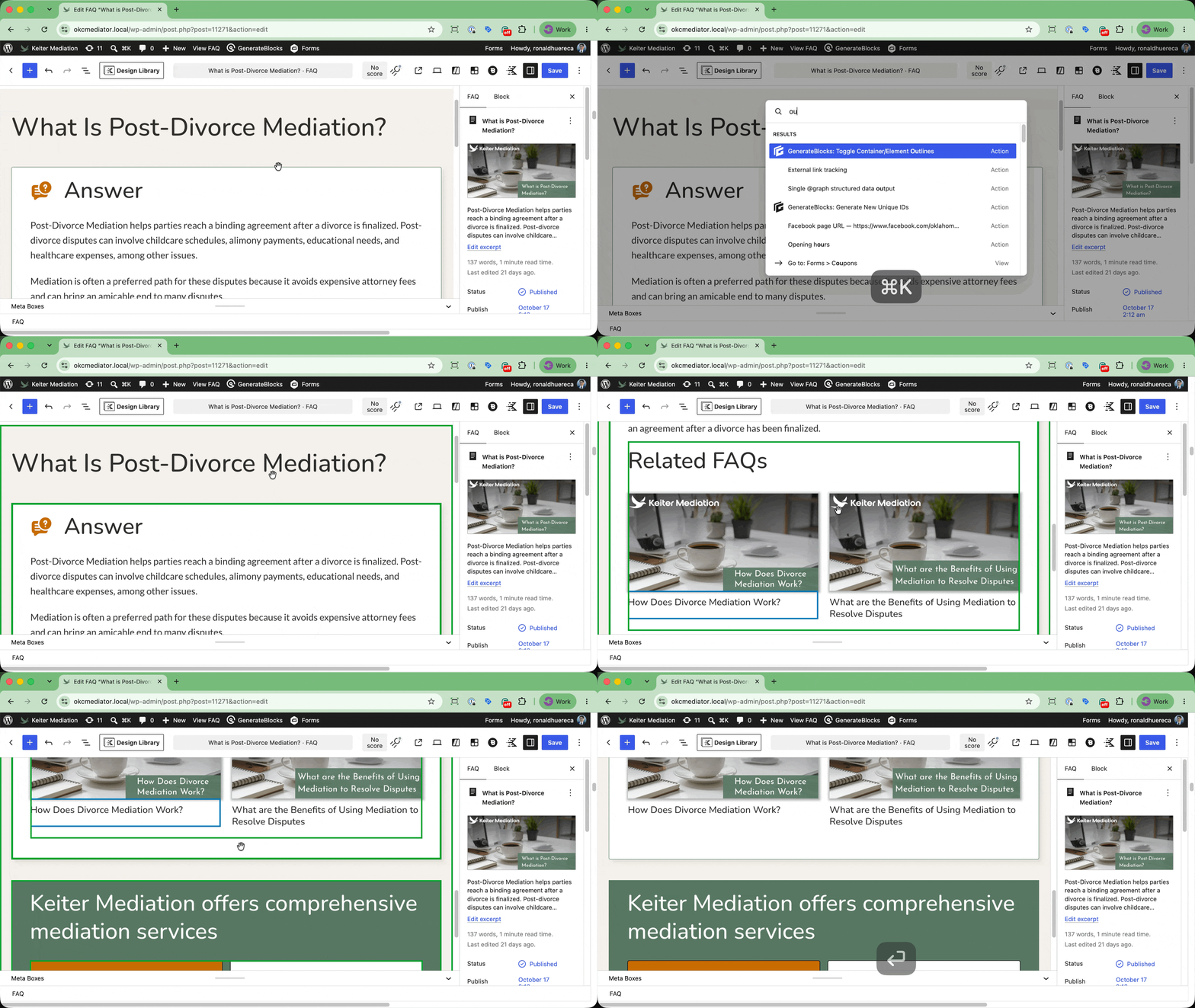
GenerateBlocks: Toggle Container/Element Outlines
Draws an outline around GenerateBlocks Containers and Elements in the editor so you can see layout boundaries. Run the command again to turn off the outlines. Outlines are an editing aid. They aren’t saved on the blocks and don’t appear on the front end.
Convert v1 Blocks to v2
GenerateBlocks: Convert v1 Blocks to v2 (Experimental)
Appears only when Enable v1 Transformations Block Command is on.
Converts every GenerateBlocks 1.x block in the current post to 2.x. A confirmation box asks you to check I understand and want to proceed before it runs.
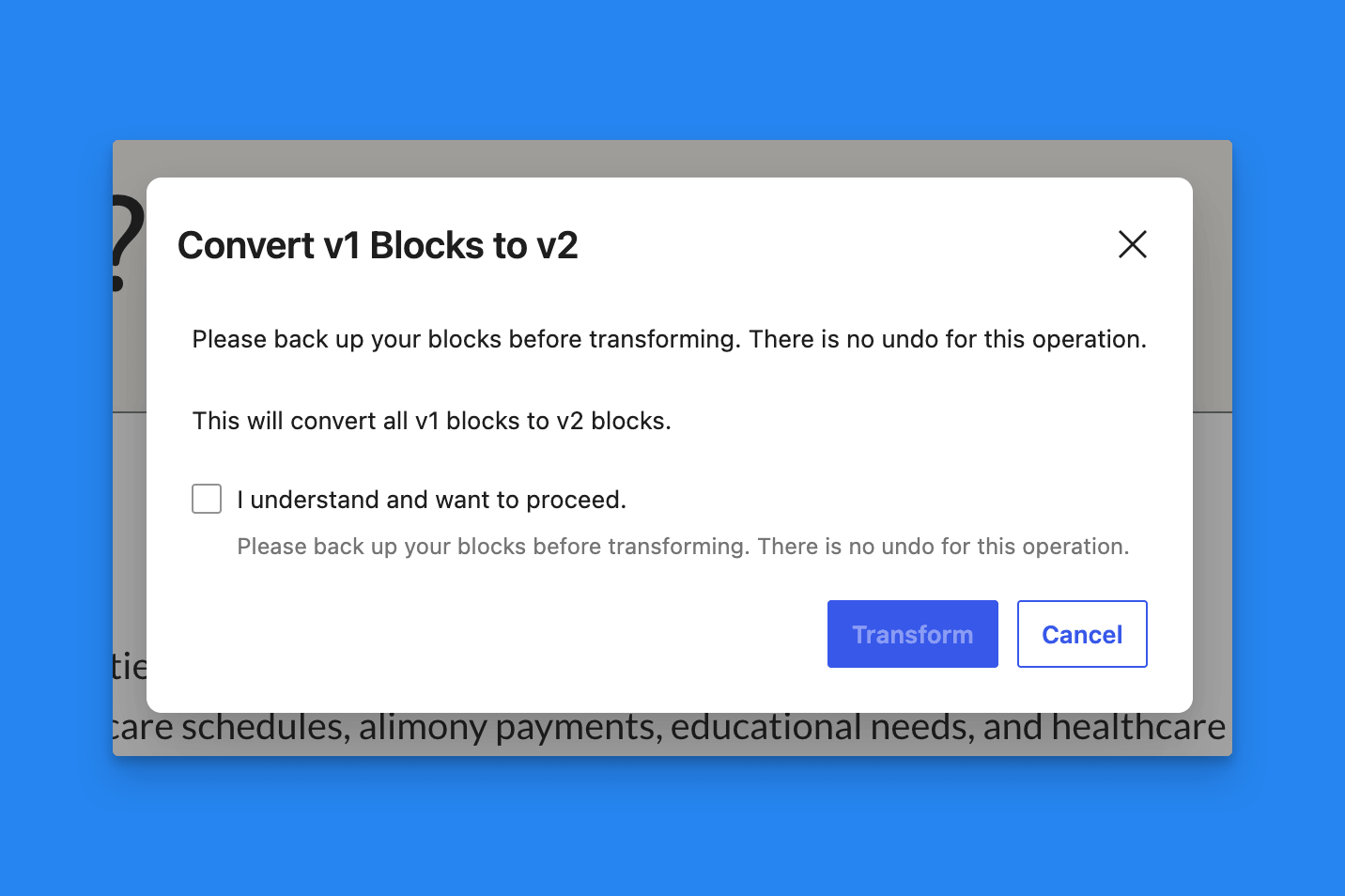
The conversion cannot be undone.
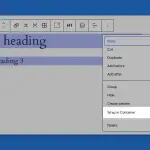
To convert one selection instead of the whole post, use Convert v1 Blocks to v2 in the block options menu.
Convert Headings to Text Blocks
GenerateBlocks: Convert Headings to Text Blocks
Converts every core Heading in the current post into a GenerateBlocks Text block. The palette shows how many headings it found and asks you to confirm.
Convert Paragraphs to Text Blocks
GenerateBlocks: Convert Paragraphs to Text Blocks
Converts every core Paragraph in the current post into a GenerateBlocks Text block. Confirm before it runs.
Generate CSS Files
GenerateBlocks: Generate CSS Files
Rebuilds GenerateBlocks CSS files. Administrators can run it from the block editor, from wp-admin, and from the front end when the frontend command palette is on.
Use this when styles look stale, and you don’t want to wait for the next save. To clear caches automatically when certain post types are saved, use Auto-Regenerate Styles on Save.
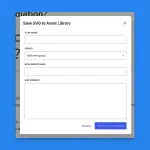
Save SVG to Asset Library
GenerateBlocks: Save SVG to Asset Library
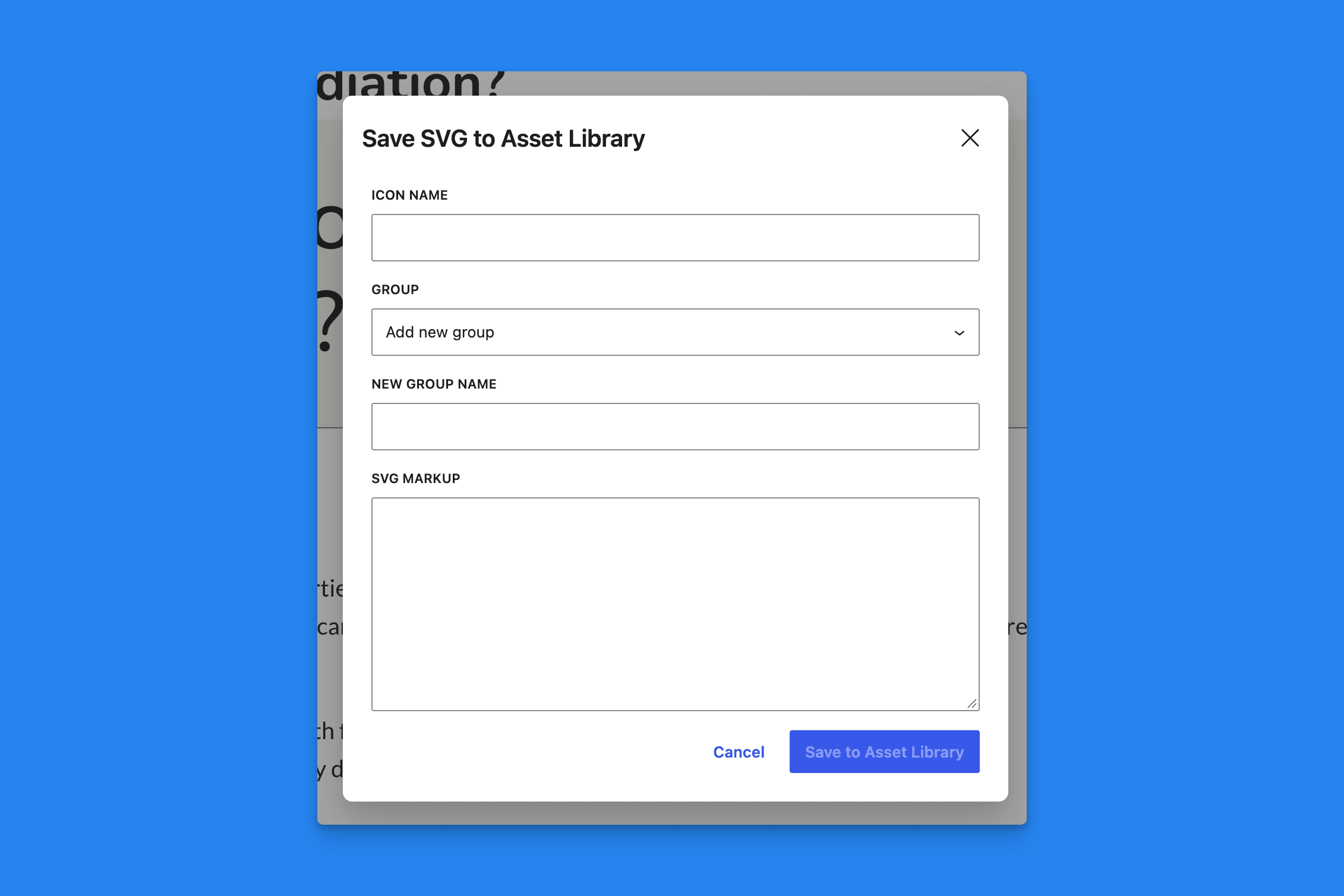
Requires GenerateBlocks Pro and an Administrator account. Paste SVG markup, name the icon, and choose a group. See Save an SVG to the Asset Library.
Generate New Unique IDs
GenerateBlocks: Generate New Unique IDs
Gives every GenerateBlocks block in the current post a new unique ID, including blocks nested inside core Groups. Saved CSS selectors that used the old IDs are rewritten to match.
Synced patterns are left unchanged. Query loop pagination keys use these IDs, so those keys update to match the new IDs. You can undo this edit from the editor.
The confirmation box reports how many blocks will change. If the post has no GenerateBlocks blocks, there is nothing to update.
The block options menu has a smaller version of this tool that only renumbers the selected block and its inner blocks. See Block menu tools.
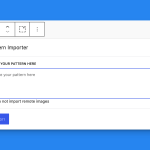
Paste In a Pattern
GenerateBlocks: Import Pattern
Opens a dialog with a text area. Paste WordPress block markup, then select Import.
Remote images are downloaded into the Media Library. The dialog lists each image as Waiting, Downloaded, or Kept original address. GenerateBlocks blocks in the pattern receive new unique IDs, including the selectors stored in their CSS, before inserting the blocks.
If an image cannot be downloaded, the pattern is still inserted, and that image keeps its original address. The dialog stays open so you can read which images failed.
If you don’t have permission to upload files, images stay at their original addresses, and unique IDs are still updated.
 Pattern Inserter
 Block Menu Tools
 Save an SVG to the Asset Library