

The Pattern Inserter block pastes pattern markup into the current post. Remote images in that markup can be downloaded to the Media Library, and GenerateBlocks unique IDs in the pattern are regenerated so they don’t collide with blocks already on the page.
Insert the block
- Open a post or page in the block editor.
- Add the Pattern Inserter block. It is in the GenerateBlocks category. You can also search for “pattern inserter”.
- In the Pattern Importer card, paste the pattern markup into Paste your pattern here.
- Select Import.
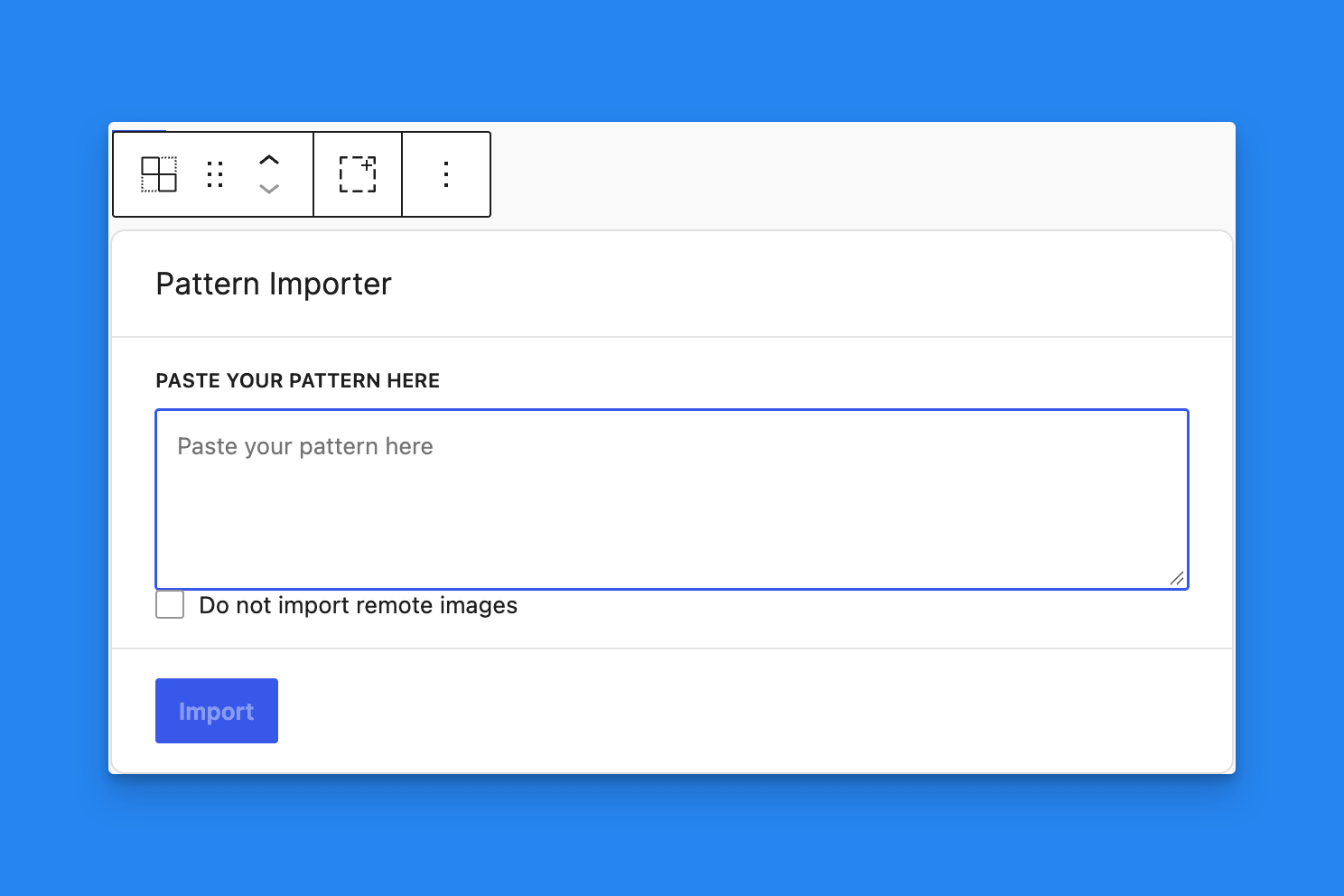
The Pattern Inserter block is replaced by the imported blocks.
Remote images
By default, the pattern downloads image addresses into the Media Library, and the markup updates to the new local addresses. A progress line shows how many images have been processed.
Check Do not import remote images before you select Import if the pattern should keep its original image addresses.
Downloading images requires permission to upload files and to publish posts. If an image cannot be downloaded, check Do not import remote images and import again so the markup keeps its original image addresses.
Unique IDs
Each imported GenerateBlocks block receives a new unique ID. If you later duplicate those blocks by hand, use Generate New Unique IDs from the block options menu or the command palette.
 Block Menu Tools
 Command Palette
 Save an SVG to the Asset Library