

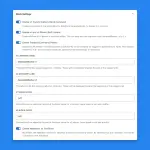
Open GenerateBlocks → Shortcuts and use the Admin Menu Bar panel. These options apply to Administrators and Editors. Other roles keep the admin bar GenerateBlocks provides.
Enable the GenerateBlocks Admin Bar Menu
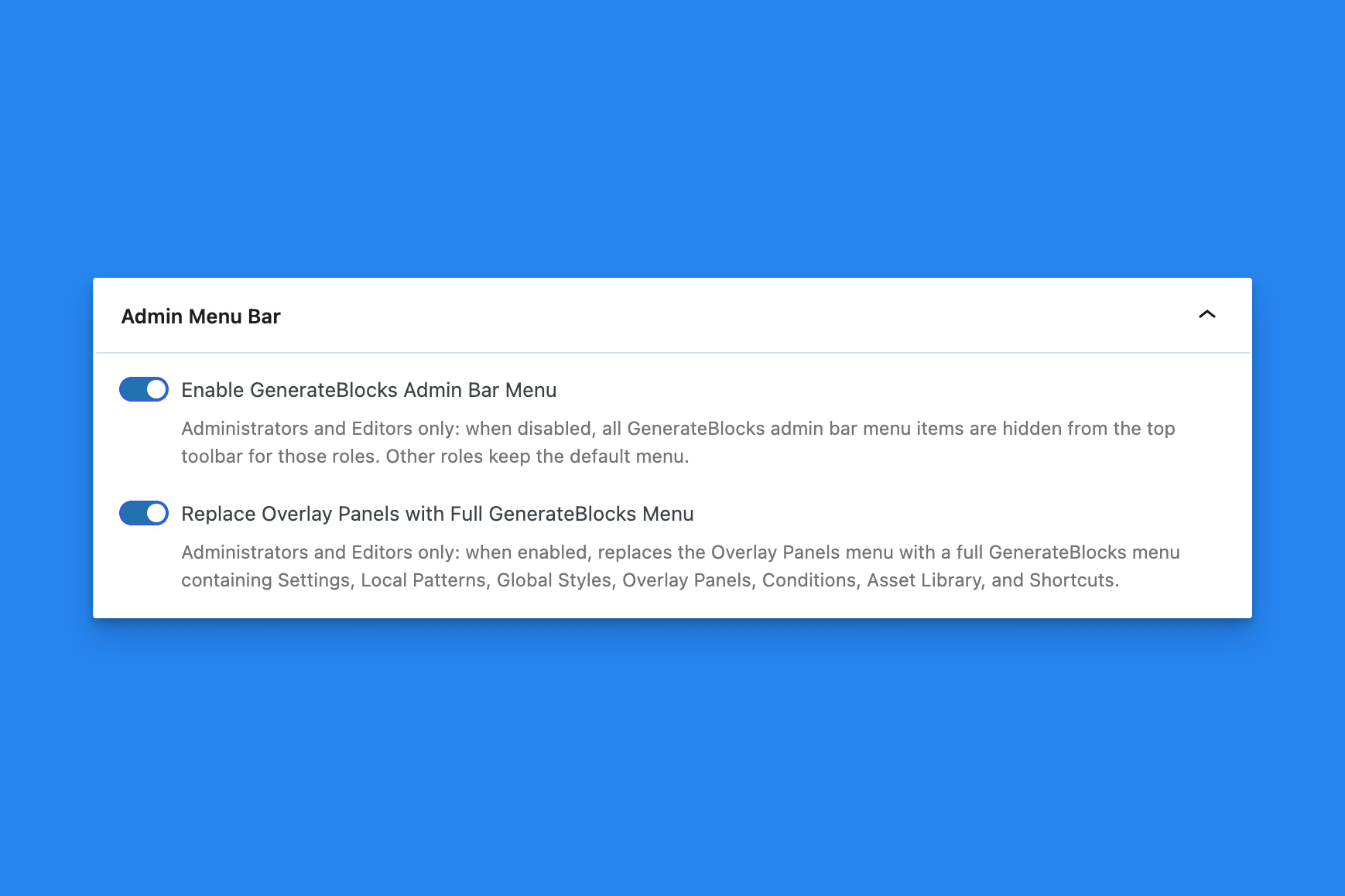
This is on by default, so the GenerateBlocks toolbar menu stays visible.
Turn it off to hide GenerateBlocks admin-bar items for Administrators and Editors. Turning it off also turns off Replace Overlay Panels with Full GenerateBlocks Menu.
If GenerateBlocks Pro is not active, there is no Pro toolbar menu to hide. The toggle is saved, and it takes effect when that menu exists.
Replace Overlay Panels with Full GenerateBlocks Menu
This appears only while Enable GenerateBlocks Admin Bar Menu is on. It is off by default.
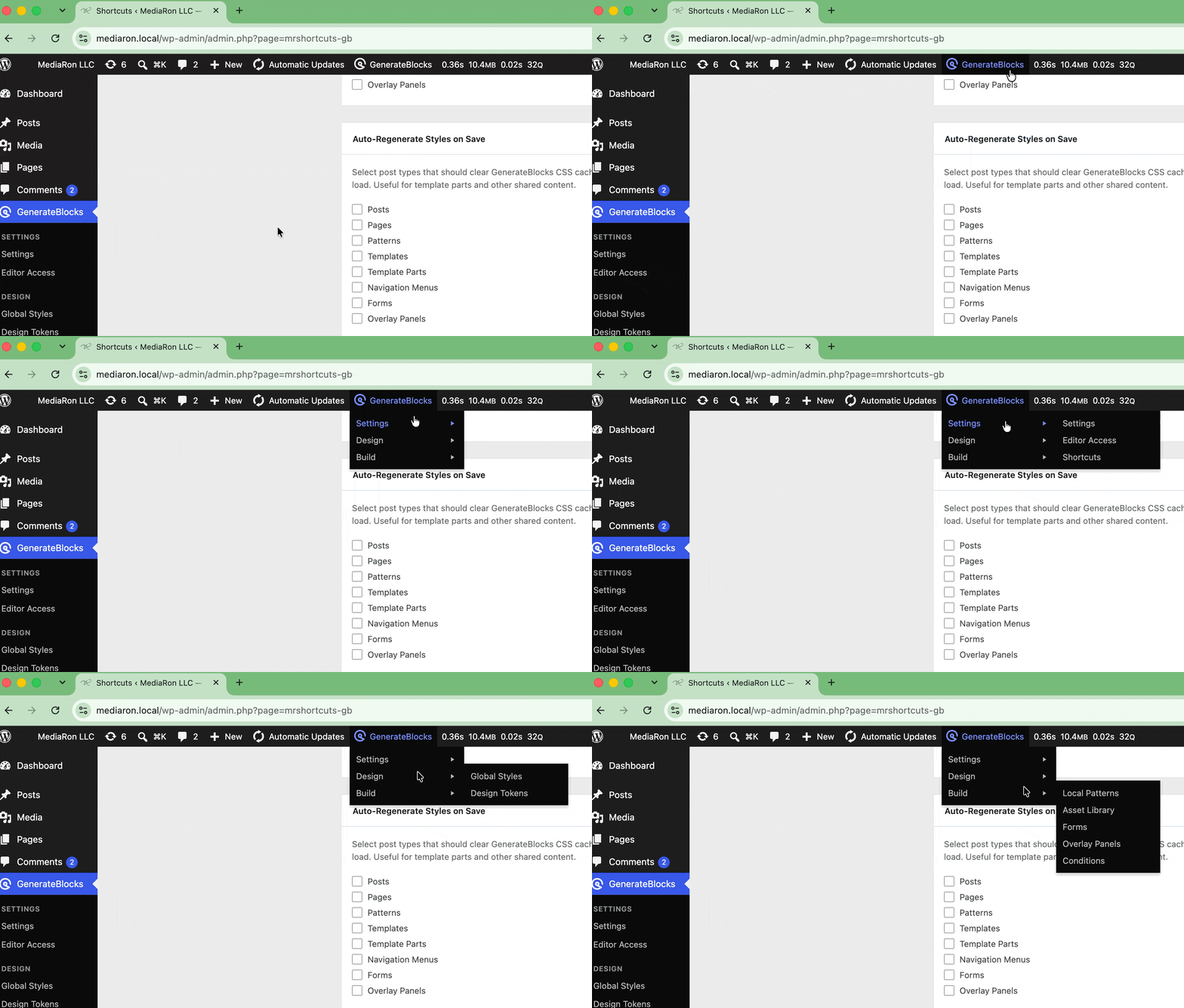
Turn it on to replace the Overlay Panels toolbar item with a GenerateBlocks menu. The menu is grouped, and a link is included only when that GenerateBlocks Pro feature is available:
- Settings — Settings, Editor Access (when that Pro feature is enabled), and Shortcuts
- Design — Global Styles and Design Tokens
- Build — Local Patterns, Asset Library, Forms (when forms are enabled), Overlay Panels (when they are enabled), and Conditions (when block conditions are enabled)
If GenerateBlocks Pro is not active, there is no Pro toolbar menu to hide. The toggle is saved, and it takes effect when that menu exists.
Select Save Options after you change either toggle. Reload the admin screen to see the toolbar update.
 Process Pasted Patterns
 Post Type Styles
 Block Settings
 Markdown to Text
 Auto-Regenerate Styles on Save
 Adobe Fonts